
Forward-dated orders cleanup
Process for cancelling forward-dated orders and ensuring customers receive their reminders.
Find old pending subscription orders
Section titled “Find old pending subscription orders”-
Go to Shopify admin.
-
Go to Orders.
-
Click the Add filter button.

-
Add a filter for the subscription tag.
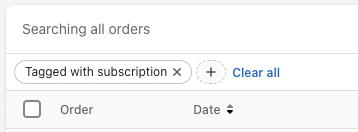
-
Sort the orders by oldest to newest.
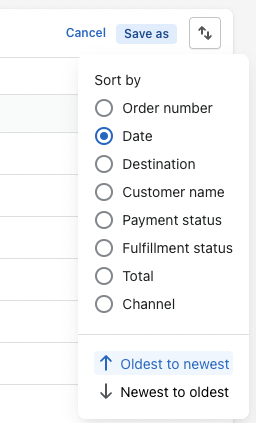
-
Scroll through these orders and you will see orders that are marked as payment pending/unfulfilled.
These orders will be marked as this for 2 reasons:
- They have failed payments and you were unable to collect their money.
- They signed up in 2022 and their next renewal date was forward dated, with an order already created for them.
Cancel old forward-dated orders and ensure a new order will be created
Section titled “Cancel old forward-dated orders and ensure a new order will be created”-
Cancel the active order (make sure to take note of when their next renewal date was listed under Notes).
-
Go to winem8.
-
Go to Subscriptions.
-
Search for the customer whose order you just deleted.
-
You will see that their next renewal date is further in the future — we want to change this date to be the same as the order you just deleted. To do this, first click Edit on the subscription.
-
Change the next renewal date to the date listed on the cancelled order.
-
Click Save.
The customer will now receive the relevant notifications before they are charged, and an order will be created on that day.