Renew your packs (renewal day workflow)
You can see that a pack is done when no orders have been created for 10-15 minutes. We recommend starting with your smallest packs first and leaving your largest pack until last.
Renewal day workflow
Section titled “Renewal day workflow”-
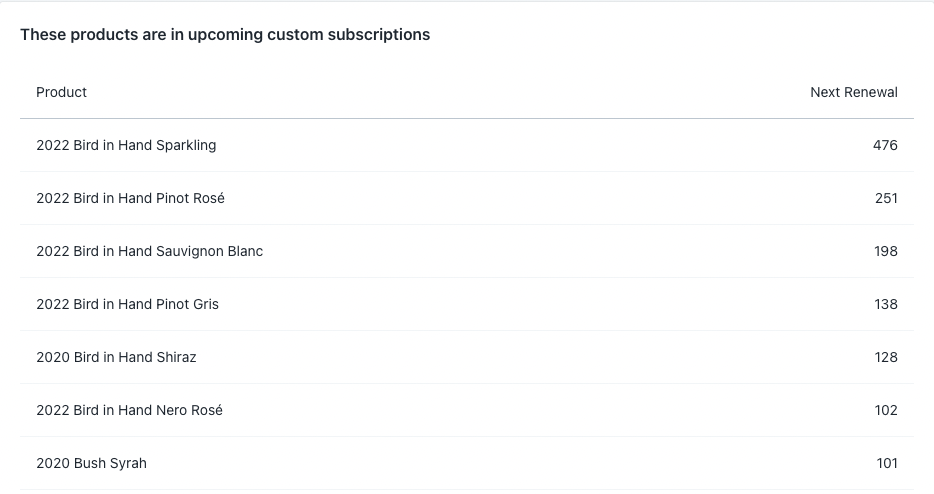
Prepare your custom packs. Ensure that all the products in your packs are correct and that you have substituted any products you no longer want to offer. You can see what products are in the custom packs by going to winem8 → Home, then scrolling down to this section.
-
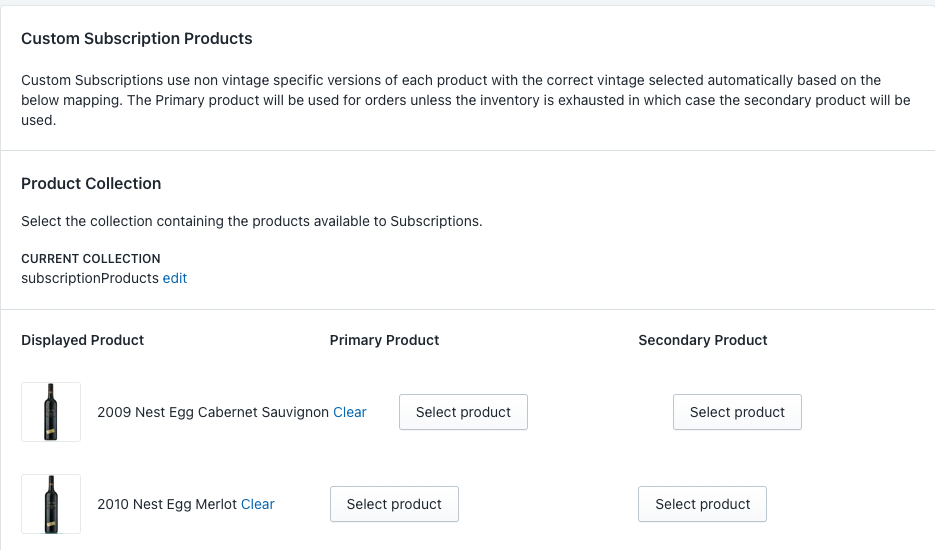
Check stock and set secondary products. If you don’t have enough stock of a product to fulfil the amount listed above, ensure you have a secondary product set up for that product. This ensures that when you sell out of the product, winem8 will automatically use the secondary product. For this to work, the products need to have the same price. To set a secondary product, go to winem8 → Settings, then scroll down to this section.
-
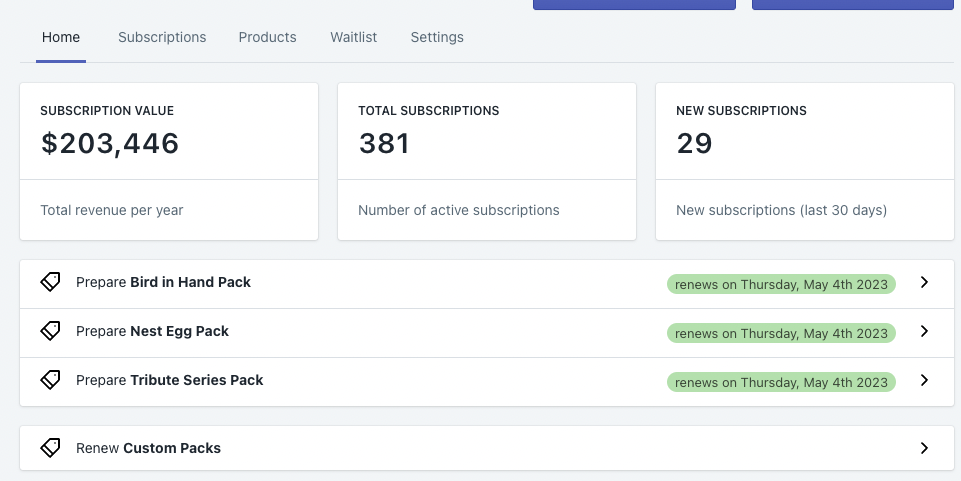
Renew your custom packs. When you are ready to go, click into Renew Custom Packs and click Create Orders. All the custom subscription orders will start generating. Before you move on to the next pack, ensure all orders are finished generating for custom packs.
-
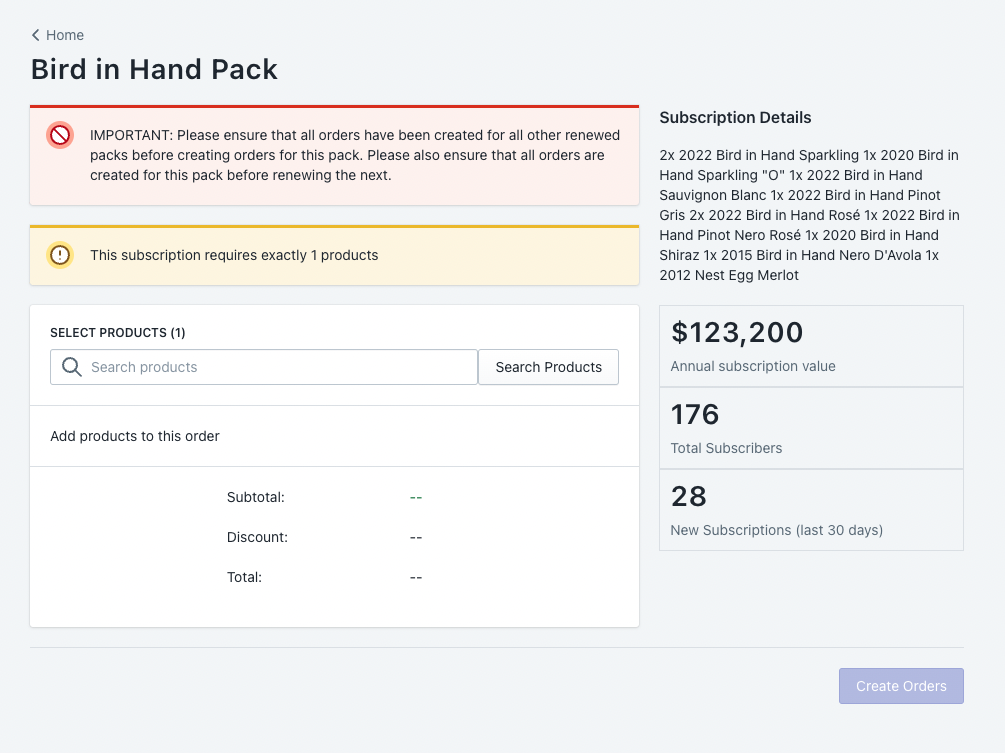
Renew each curated pack. Click into the pack you want to renew. You will need to build the order before you can click create orders. To do this, click Search Products, search for the relevant pack, and add it to the order. You can then click Create Orders, and the orders for this pack will start generating. Before you move on to the next pack, ensure all orders are finished generating.