
Subscription issues
What are subscription issues?
Section titled “What are subscription issues?”Subscription issues are used to monitor the health of a subscription. You might first notice them as the yellow dot next to a subscription with a number inside it.
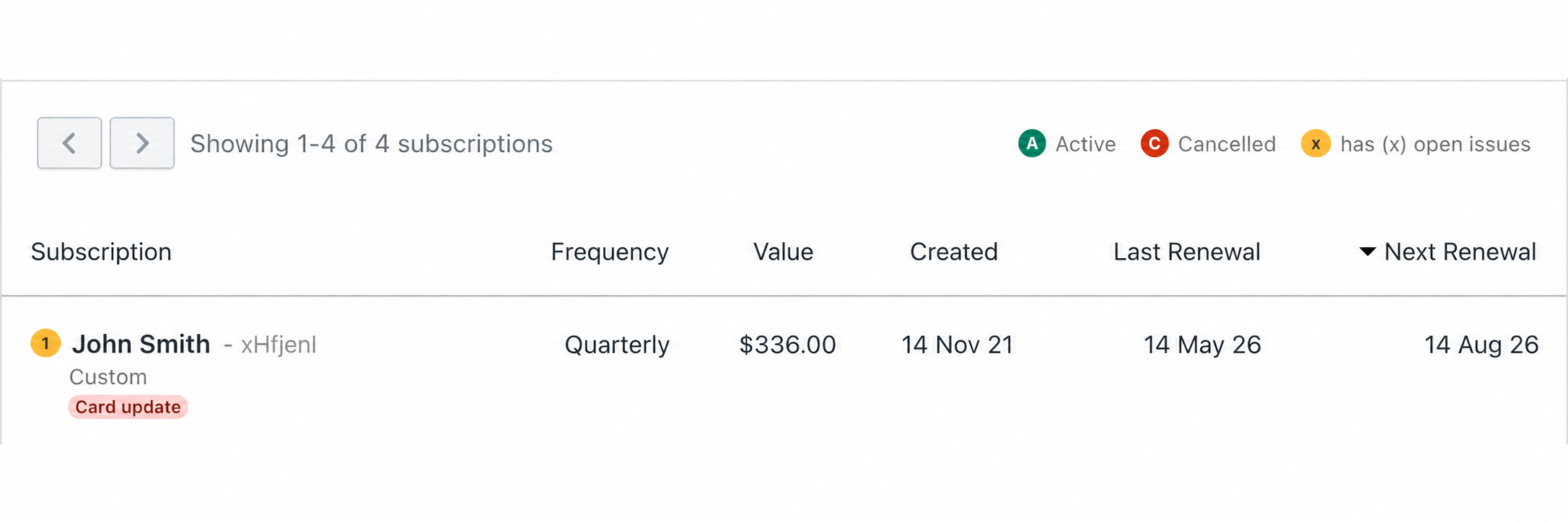
The number shows how many issues are associated with the subscription. Clicking through to the subscription lets you review and action the issue.
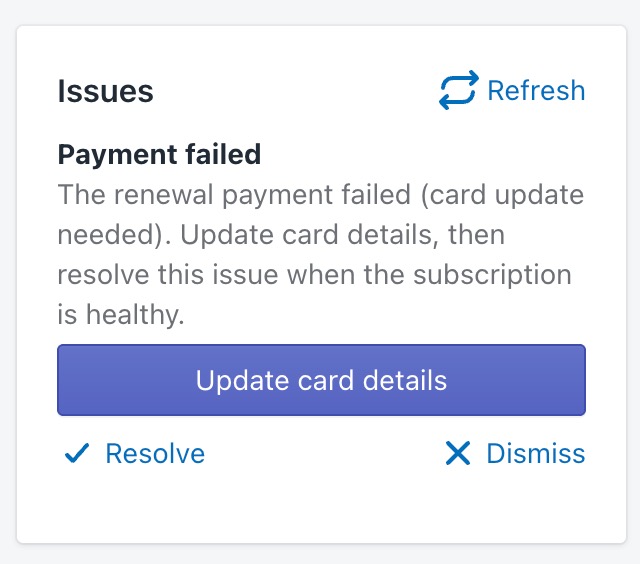
You should then find the subscription issues panel in the right column under the customer.
How do I find subscriptions with issues?
Section titled “How do I find subscriptions with issues?”-
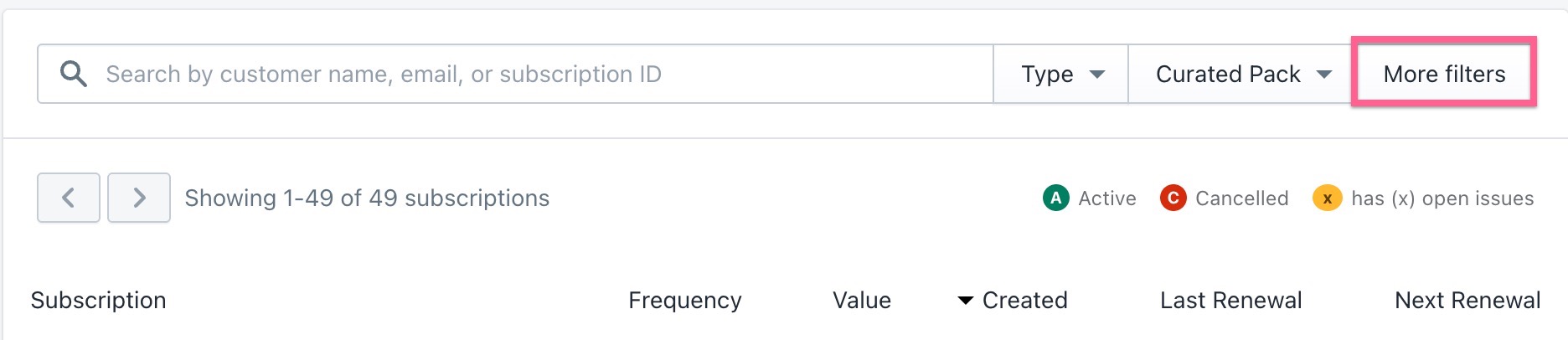
Navigate to the ‘Subscriptions’ tab in winem8
-
Open the ‘More filters’ tab
-
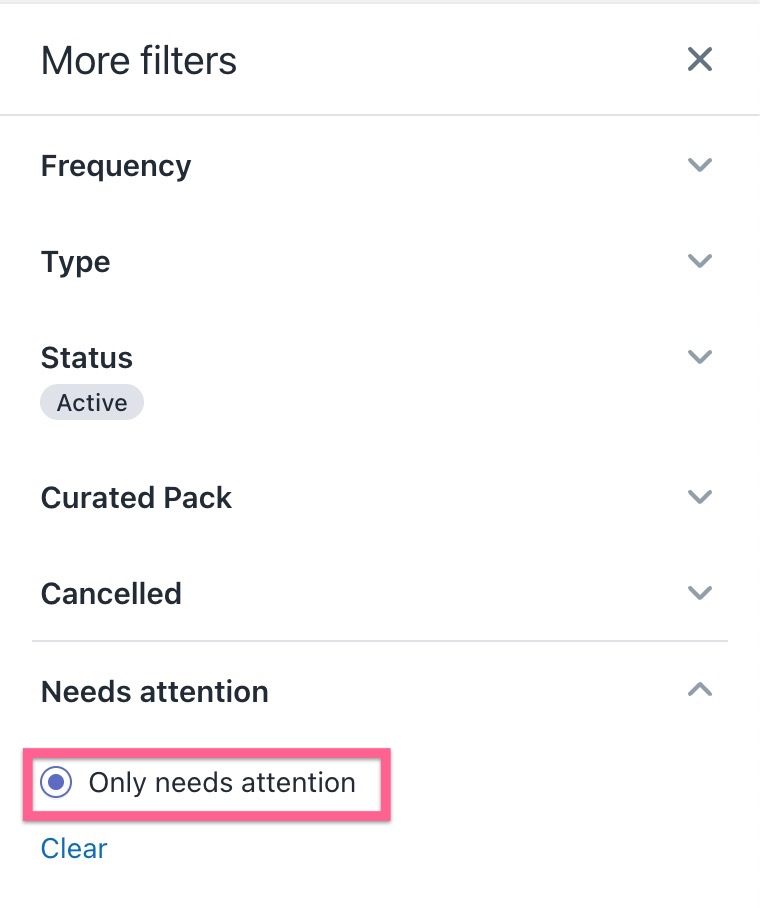
Check ‘Only needs attention’
-
You will now be presented with all the current subscriptions that have issues identified on them.
Scan a subscription for issues
Section titled “Scan a subscription for issues”If you suspect a subscription has an issue you would like to resolve, you can trigger WineM8 to perform a scan and return the results.
-
Navigate to your subscription
-
Select ‘Check for issues’ in the toolbar at the top of the page.

-
You will see a popup at the bottom of the page letting you know what the scan found
-
Scroll down below the Customer profile in the right column to see your open issues along with instructions for how to solve them.
Common subscription issues
Section titled “Common subscription issues”Winem8 checks subscriptions for problems that may need attention before the next renewal can continue. Some issues are urgent because they can stop an order or payment from being created. Others are warnings that help you fix something before it becomes a bigger problem.
Issue summary
Section titled “Issue summary”| Issue | What it means | What you can do |
|---|---|---|
| Payment authentication required | The customer’s renewal payment needs extra approval, such as bank security approval. | Send the customer a payment reminder or recovery link if one is available. If the customer cannot complete authentication, update their card details. |
| Payment failed | A renewal payment could not be completed. This may happen because the card expired, the customer has insufficient funds, the bank declined the payment, or the payment needs extra authentication. | Check the subscription and payment details. Send a recovery link if available, update the card if needed, then retry or resolve the issue once the payment problem is fixed. |
| Activation failure | The subscription did not complete its initial payment setup, so future renewals cannot be charged. | Retry the card setup from the subscription page. Resolve the issue once the payment setup succeeds. |
| Customer needs to update card | The saved card or payment method can no longer be used for future renewals. | Update the customer’s card details. If a renewal has already failed, retry or reschedule it after the new card is saved. |
| Card expired | The saved card has expired and cannot be charged. | Update the customer’s card details, then retry or reschedule any affected renewal. |
| Card expiring soon | The saved card still works, but it will expire soon. This is a warning only. | Contact the customer or update the payment method before the card expires. |
| Payment failed, reason unclear | A payment failed, but Winem8 could not clearly identify the reason. | Review the subscription and payment history. If a payment link is available, send it to the customer. Otherwise, update the card or retry only after checking the likely cause. |
| Order stuck | A renewal order started but has not finished moving through the renewal process. | Review the order and subscription history. If the order is ready, finalise it. Otherwise retry, reschedule, or resolve the issue once the order status is corrected. |
| Renewal overdue | The subscription missed its renewal window. It may not have created a renewal order, or an order may already be stuck. | Reschedule the subscription with a valid next renewal date. If there is also a stuck order, review or retry that order first. |
| Product out of stock | One or more products in the subscription are not available, so the renewal cannot be fulfilled. | Update stock, substitute products, or edit the subscription products. Retry the renewal once the subscription can be fulfilled. |
| Shopify cancel failed | Winem8 could not cancel or clean up a related Shopify order. This is a warning, but it should still be reviewed. | Open the Shopify order directly. Confirm whether it should be cancelled, refunded, fulfilled, or left alone, then resolve or dismiss the issue. |
| Shopify customer deleted | The Shopify customer linked to the subscription no longer exists. New Shopify orders cannot be created until this is fixed. | Replace the customer on the subscription with a valid Shopify customer. If there are also payment issues, fix those too. |
Issues that stop renewals
Section titled “Issues that stop renewals”Most issues block automatic renewal attempts while they remain open.
These issues are warnings only:
- Card expiring soon
- Shopify cancel failed
- More than one issue can appear on the same subscription. For example, a missing Shopify customer and a payment issue can both be true.
- Dismissing an issue does not necessarily fix the underlying subscription. Resolve an issue only when the subscription, related order, payment method, and Shopify customer details are ready for the next renewal attempt.
I haven’t been able to get in touch with the customer to process their payment. What’s next?
Section titled “I haven’t been able to get in touch with the customer to process their payment. What’s next?”We understand that there may be some customers that you can’t get in touch with to process their failed payment.
If this is the case, ensure that you cancel their current order. Alternatively, you may decide to also cancel their subscription.
See Cancelling subscriptions to read how to cancel orders and subscriptions.