
Substitute products
Substitute product process
Section titled “Substitute product process”Unlike curated subscriptions where you can decide exactly what products go in the orders, custom subscriptions allow customers to choose their own products and when they will receive this pack. This makes it important to plan for stock and when products become out of stock.
You have a couple of options when it comes to managing the turnover of products in custom subscriptions.
Firstly, if you are rolling over between vintages, you can set a non-vintage product as the display product, and then the vintage options in the backend as primary and secondary products.
However, you may decide to give your customers more options over exactly what vintage they will receive. We always recommend setting primary and secondary products as a backup in either instance to ensure that if a product is sold out, the orders will automatically use the secondary product.
You can read more about this in Primary and secondary products.
However, there may come a time that you sell out of a product completely, stop selling a certain varietal, or forgot to set up a secondary product. No problem — you can substitute a product for another product in custom subscriptions in bulk. This will automatically replace the product in all subscriptions that contain it with an alternative product.
-
Review your winem8 collection in Shopify. Go to Shopify → Products → Collections and select the collection you use for winem8. Confirm you have the right wines you want to offer in this collection, and that they are active in Shopify.
-
Create a new product in Shopify to start the replacement process, and add it to the winem8 collection.
-
(Optional) Set up a customer notification in Klaviyo. Set up a flow that is triggered by the metric
winem8 – Product Substitution. You can then create an email that is sent automatically after you substitute a product. List the substitution details in this email and set it to Live. -
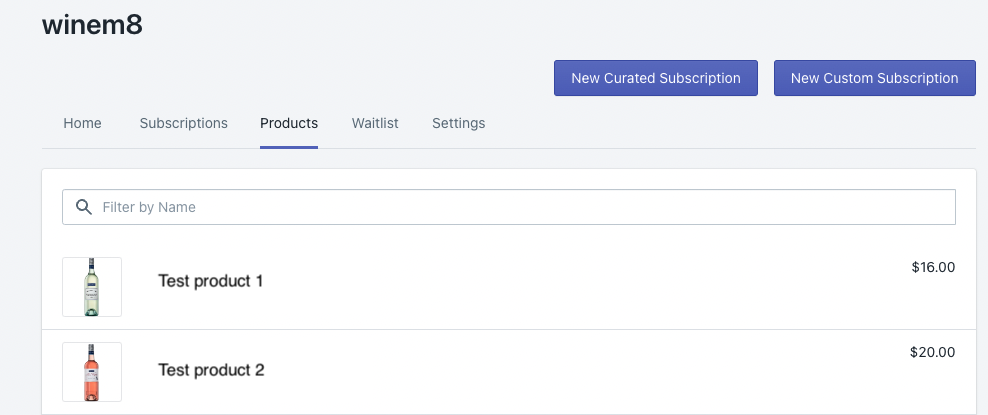
Go to winem8 and navigate to Products.
-
Search for the product you want to remove, stop offering, delete, or that you are sold out of in wine club subscriptions.
-
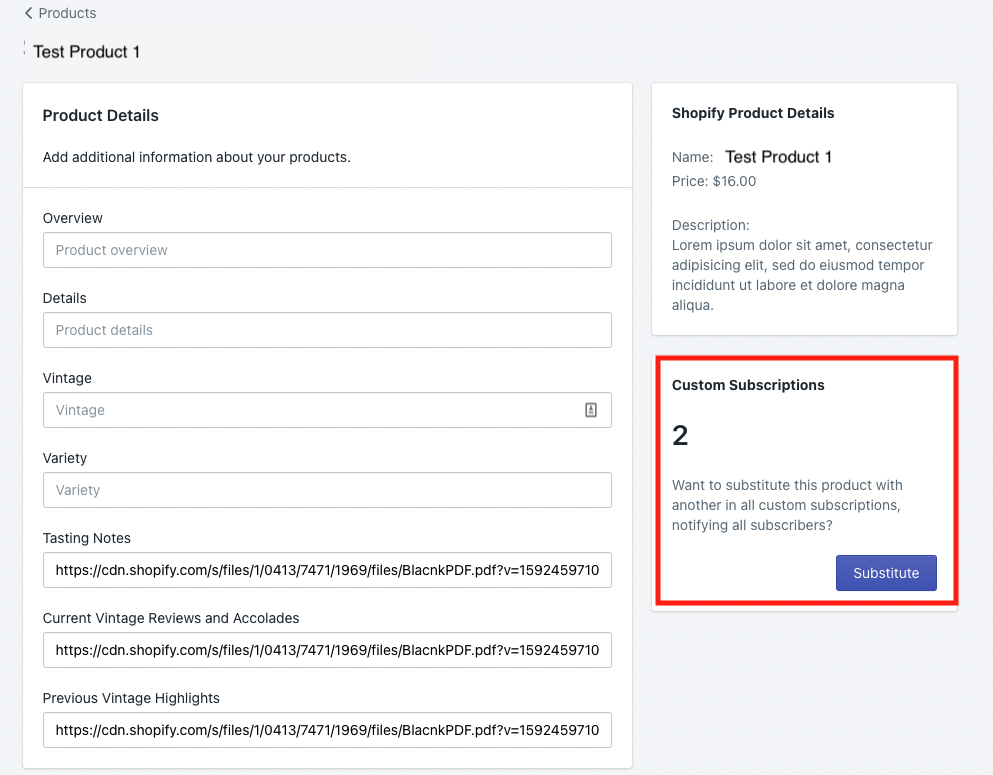
Check how many subscriptions contain it. On the right-hand side, under Shopify Product Details, there is a section called Custom Subscriptions with a number indicating how many people have this product in their subscription.
-
Click Substitute to start the replacement.
-
Search for the replacement product, then click Substitute again.
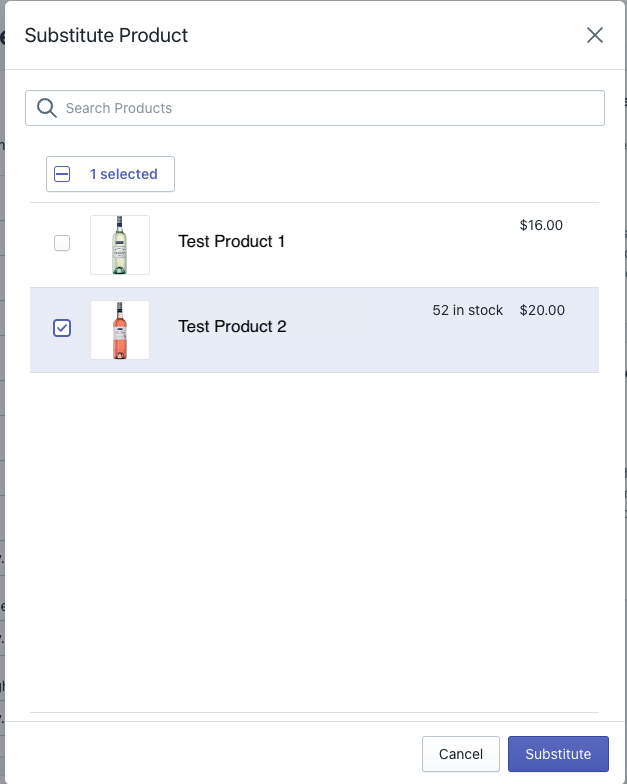
Depending on how many subscriptions have the product, this may take a few minutes.
-
Wait until the product page shows 0 subscriptions containing the old product. It is now safe to remove, delete, or archive the old product.
-
(Optional) Turn off the Klaviyo flow. If you notified members via the Klaviyo flow, turn it off now. It is important you turn this off after every substitution.
-
(Optional) Update the Klaviyo flow each time you do a product substitution, so the relevant wines are listed in the email.
Klaviyo option
Section titled “Klaviyo option”Winem8 will speak to Klaviyo to let it know that a substitution has occurred. You have the option to set up a corresponding Klaviyo flow to let customers know about the substitution and prompt them to login and update their subscription if they would like to select an alternative product. If you need assistance, reach out to the winem8 team to learn more about the Klaviyo support packages we offer.