
Manual (batch) renewals
What is this feature?
Section titled “What is this feature?”This feature allows the winery to renew all their custom subscribers’ orders in one go, at the same time.
It removes the frequency choice from the customer to dictate how often they get the pack, and instead puts this control in the hands of the winery.
When a customer first signs up, their order will not be created immediately — instead, it will be added to the batch of subscriptions that renew when the winery triggers this.
Benefits to the winery
Section titled “Benefits to the winery”- More control over when they are packing orders.
- Traditional wine club structure that is well known by their customers.
How to turn this feature on
Section titled “How to turn this feature on”-
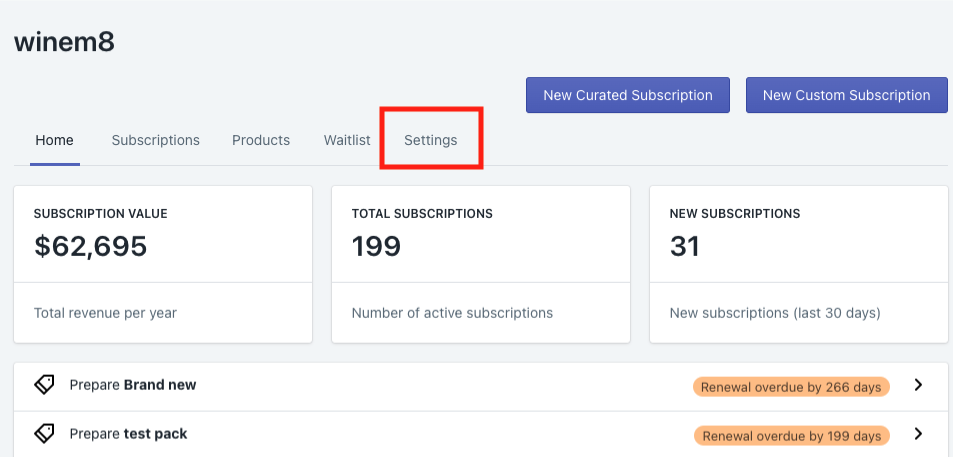
Click Settings.
-
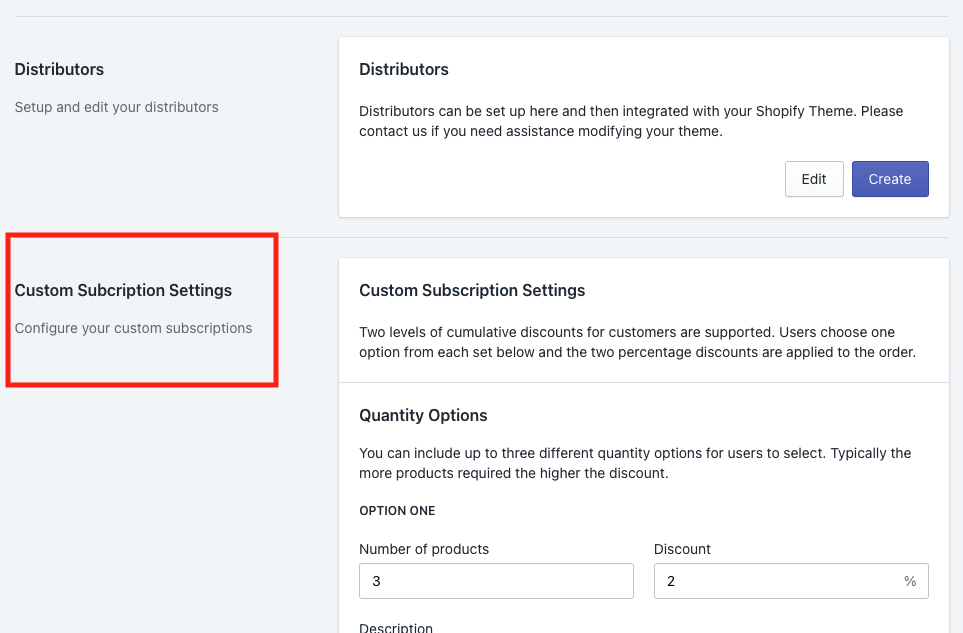
In settings, scroll down to the section Custom Subscription Settings.
-
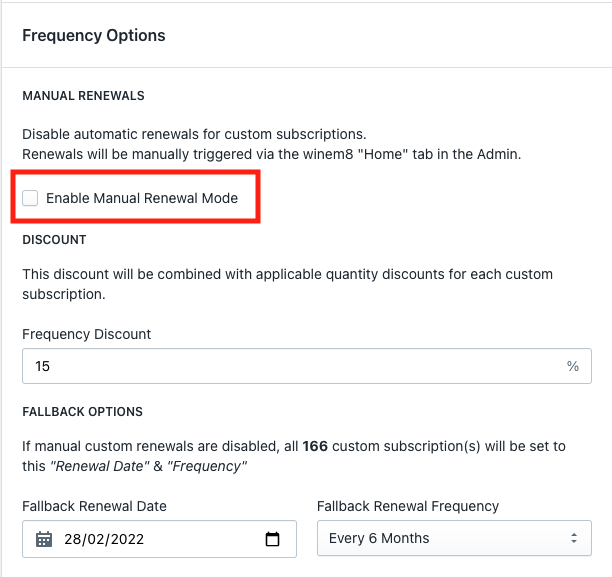
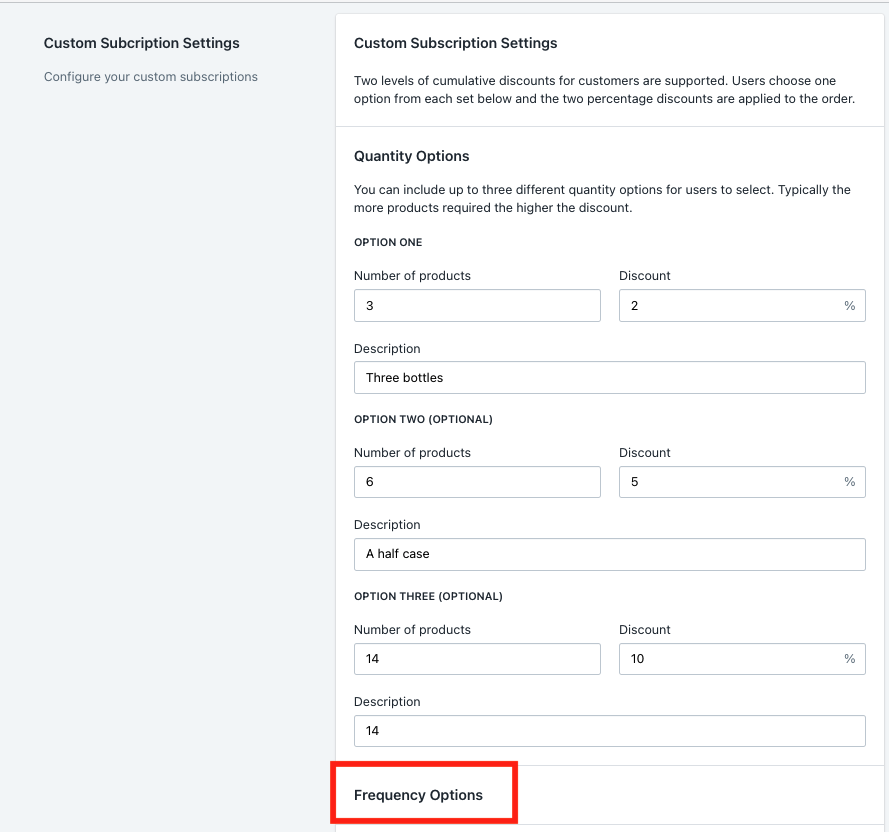
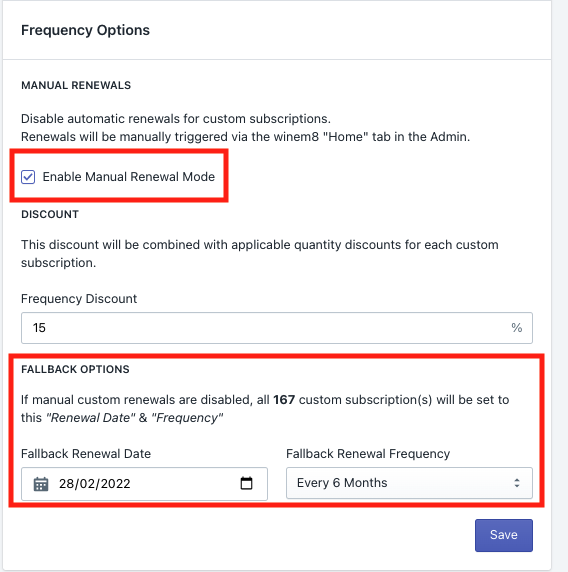
In this section, scroll to Frequency Options. You will have the option to continue with the current process (where you provide frequency options to your customers) or to enable manual renewal for custom subscriptions. To turn manual renewal on, click the checkbox.
-
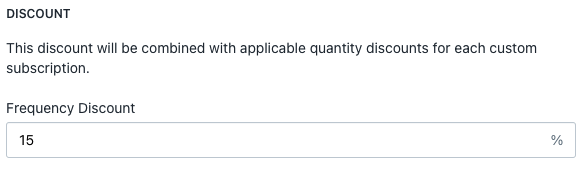
Set your discount.
-
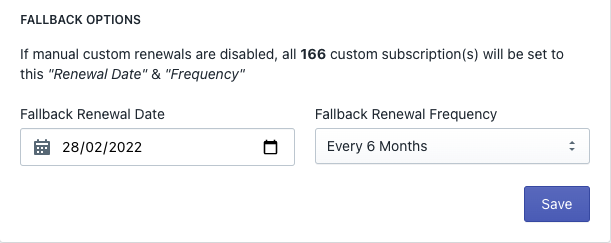
Select your fallback options including a fallback renewal date and frequency.
Set your fallback frequency at the frequency you plan to manually renew the custom subscriptions. These fallback options will be used if you ever decide to turn off the manual renewals.
-
Click Save.
The setting is now turned on in the backend. From here, you will need to change what the customer sees when creating their pack in winem8.
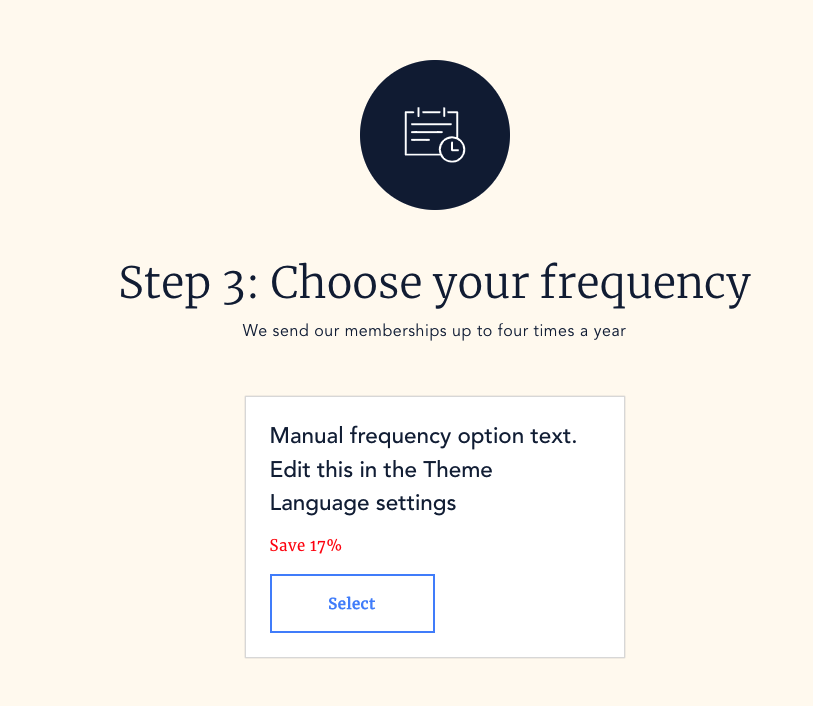
Edit what the customer sees
Section titled “Edit what the customer sees”-
Go to your Shopify CMS.
-
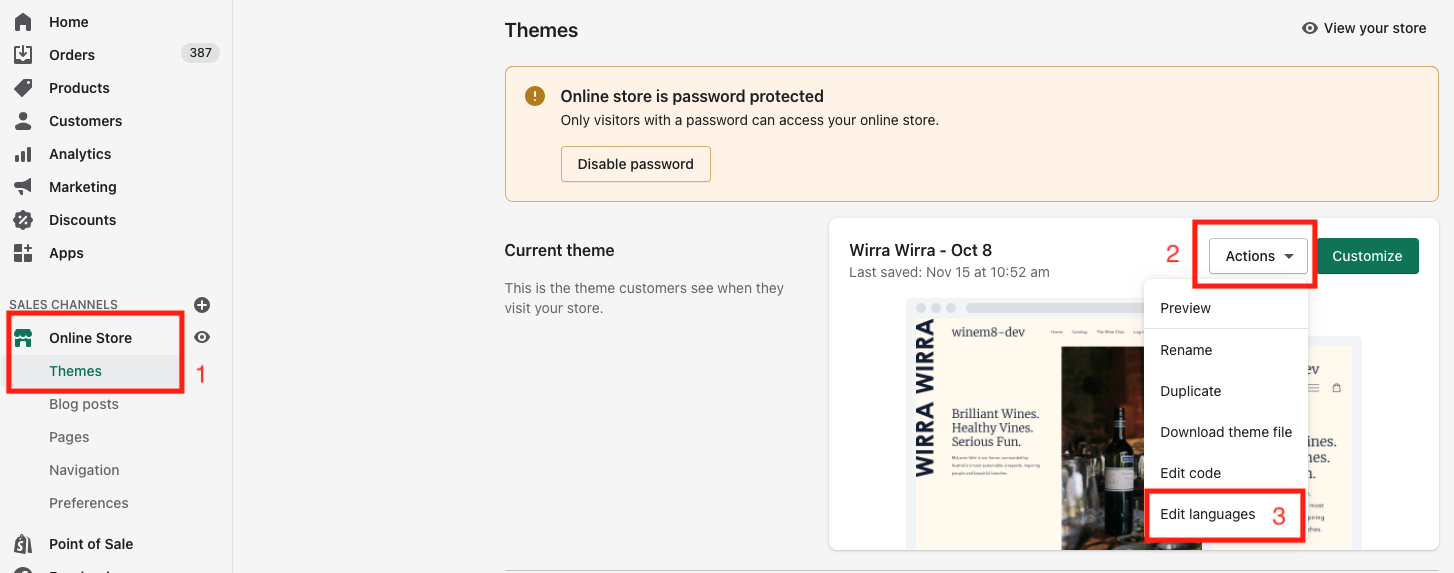
Click Online Store, then Themes.
-
Under your current/live theme, click the dropdown Actions, then click Edit languages.
-
In Edit Languages, click winem8.

-
Under winem8, scroll down to frequency. Here you can change the text customers will see in this box under Manual Renew.
Preparing stock for custom renewals
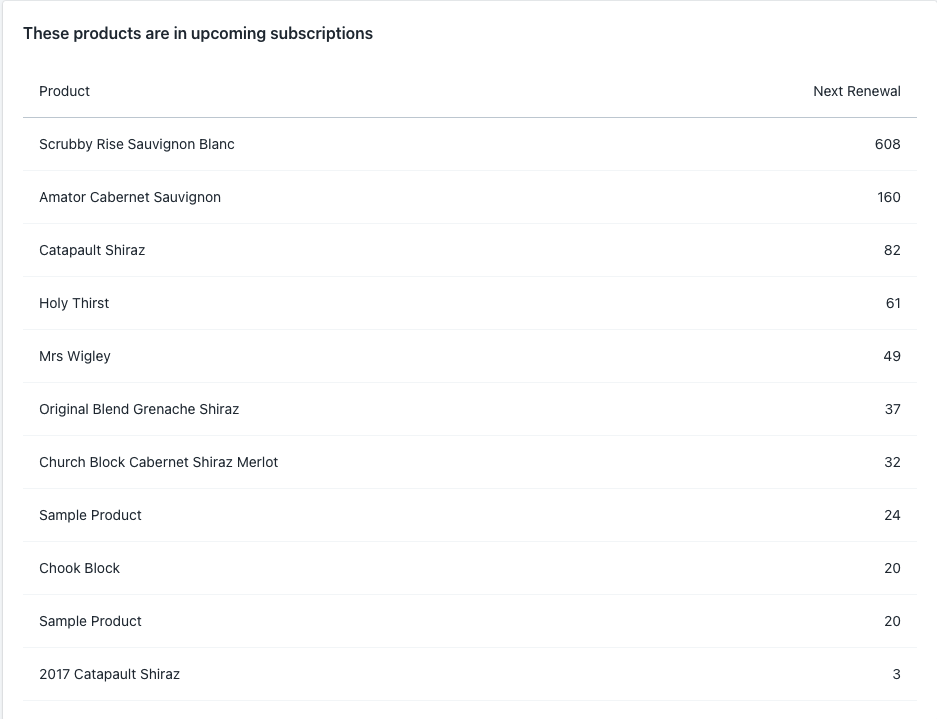
Section titled “Preparing stock for custom renewals”To see the upcoming products in your next renewal, go to the home page in your winem8 application. Scroll down to the area titled These products are in upcoming subscriptions.
This section will show what bottles are in upcoming subscriptions, and how many of them, to help you plan your stock accordingly.
Editing a custom subscription customer’s order after it is created
Section titled “Editing a custom subscription customer’s order after it is created”Orders are created at the start of the renewal period. 7 days later, this order will be finalised and charged. During these 7 days, no changes to the existing order can be made — but it is possible to make changes.
To make a change to the customer’s order, first you will need to cancel the existing order.
-
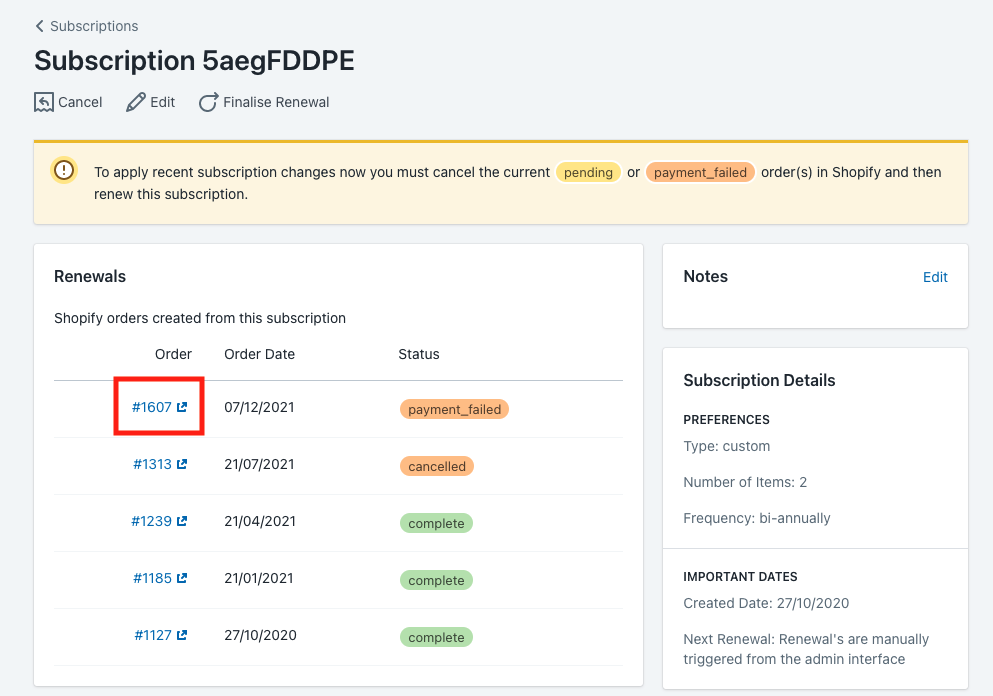
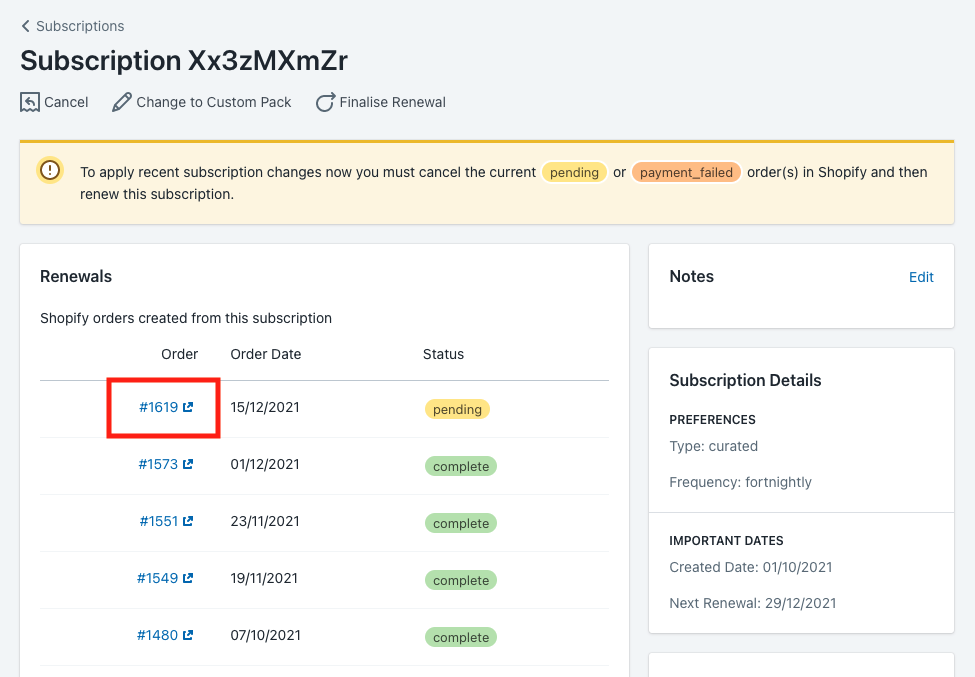
Go to their subscription in winem8. Under renewals, click the existing order, which will have the status of Pending or Payment failed.
-
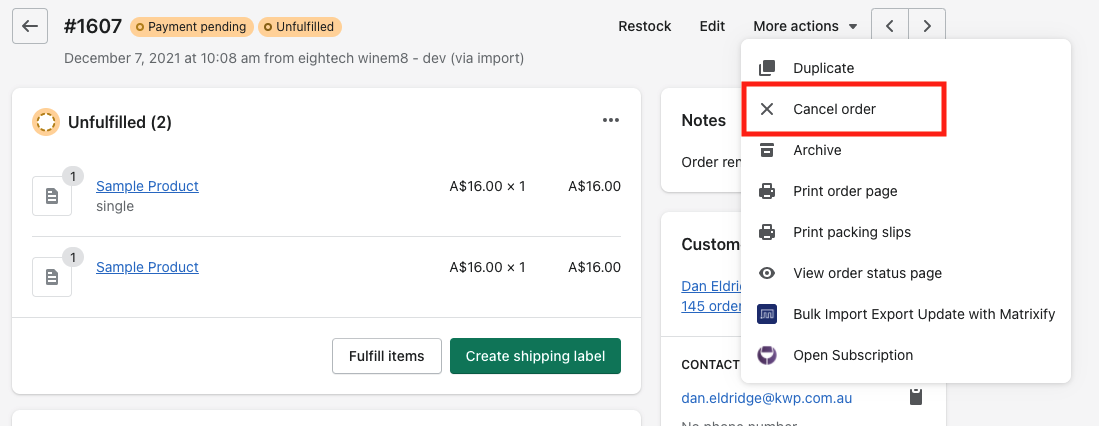
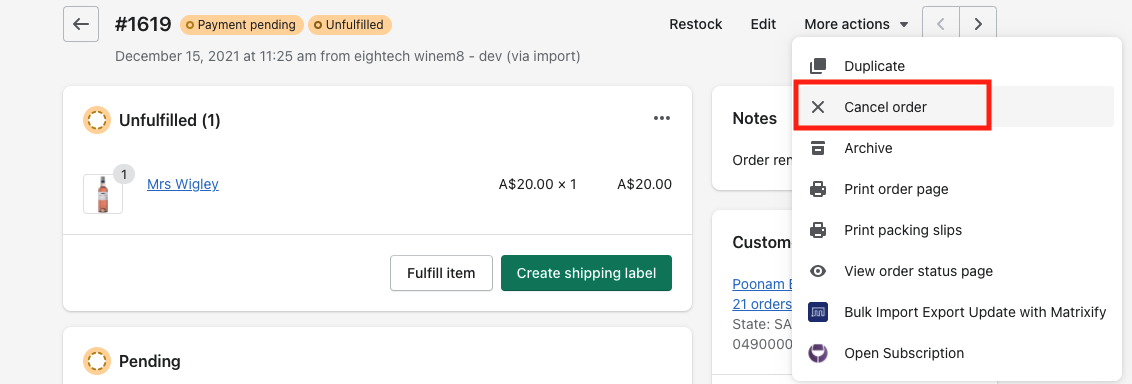
In the Shopify order, in the top right-hand corner, click More actions → Cancel Order.
-
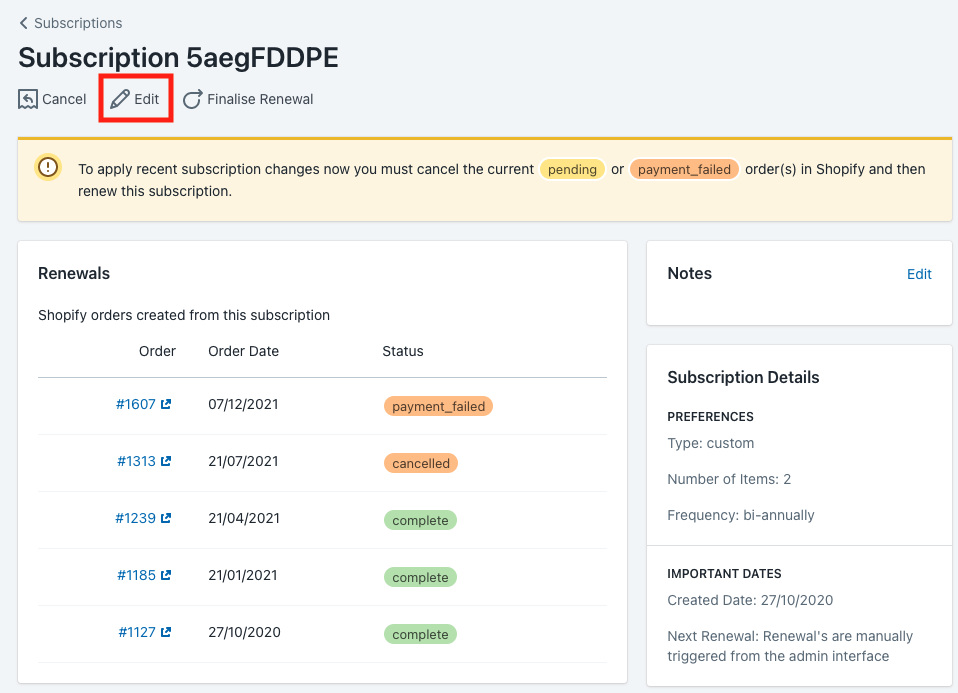
Go back to the customer’s subscription and click Edit.
-
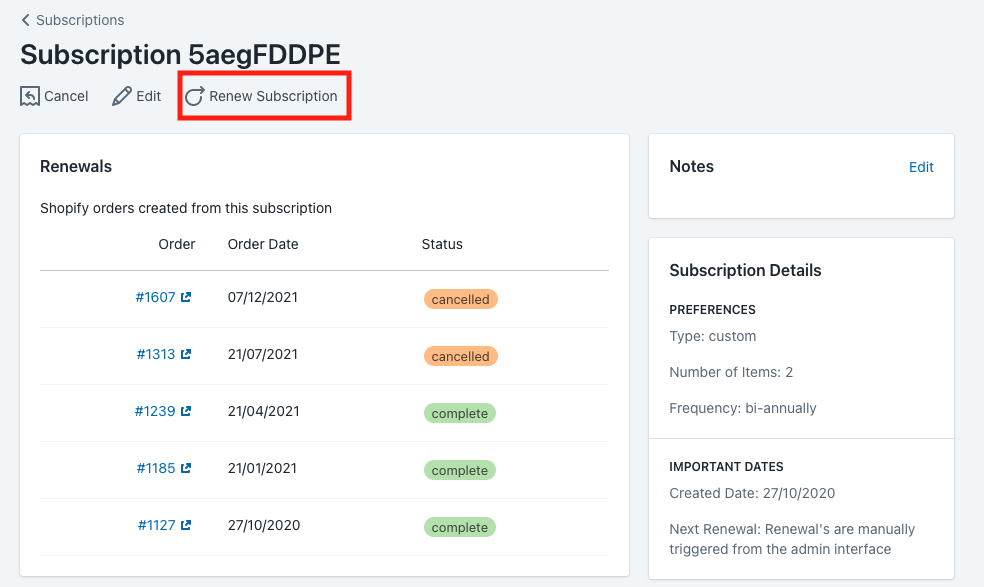
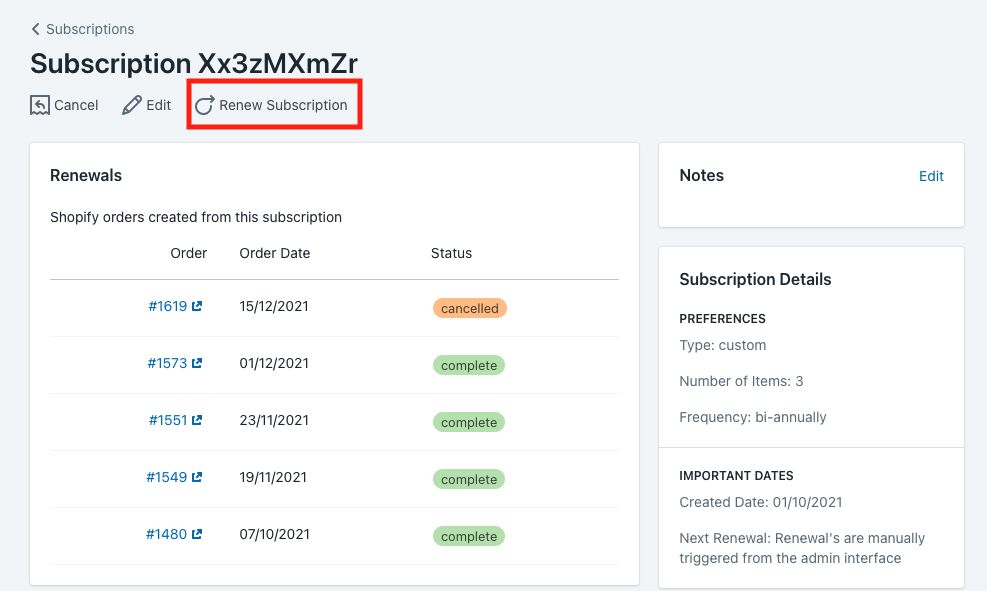
Make the relevant changes to the subscription and click Renew Subscription.
This will create a new order with the edited bottles and immediately charge the customer.
Editing a curated subscription customer’s order after it is created
Section titled “Editing a curated subscription customer’s order after it is created”Once an order has been created through the curated subscription renewal process, it will go through the 7-day process. Within these 7 days, no changes to the existing order can be made. However, it is possible to change the customer’s order.
-
Go to the customer’s subscription and click the existing order.
-
In the Shopify order, click More actions and then Cancel Order.
-
Go back to the customer’s subscription and click Change to Custom Pack. This will allow you to create a custom order for the customer as per their preferences.

-
Create the custom subscription for the customer. Once finalised, click Renew Subscription, which will create a new order and immediately charge the customer.
To avoid this, revert the customer back to their curated pack selection after their custom order is fulfilled. You will need to cancel the custom subscription and create a new curated subscription for the customer.
If the customer doesn’t want to return to the curated pack but doesn’t want to be included in the next renewal of custom subscriptions, read below on how to skip a customer’s renewal.
Skipping a customer’s renewal
Section titled “Skipping a customer’s renewal”A customer will no longer be able to skip their subscription themselves. They will need to touch base with a member of your team to action this for them.
To skip their next renewal for custom subscriptions, similar to curated subscriptions, you will now need to cancel their subscription. When they are then ready to start receiving orders again, you will need to create a new custom subscription on their behalf.
Turning the feature off
Section titled “Turning the feature off”By turning off this feature, you are allowing the customers to decide what frequency and when they receive their orders. These can be created and renewed any time throughout the year.
When you are turning off this feature, you will first need to select a fallback frequency and next renewal date. This will be set in all custom subscriptions when you first turn this feature off.
-
Go to the winem8 app and Settings.
-
Scroll down to Custom Subscription Settings → Frequency Options.
-
Set the fallback renewal date and frequency, and uncheck the box for Enable Renewal Mode.
-
Once you have unchecked the box, a new section will appear for automatic renewals. Set the frequency options and the discount that you will offer your customers.
-
After you are happy with these options, click Save.