Refunding a subscription order
Single renewal orders for a subscription can be refunded once payment has been taken. This is completed via the Shopify interface with the refund processed via the connected Stripe account.
Process of refunding a subscription order
Section titled “Process of refunding a subscription order”-
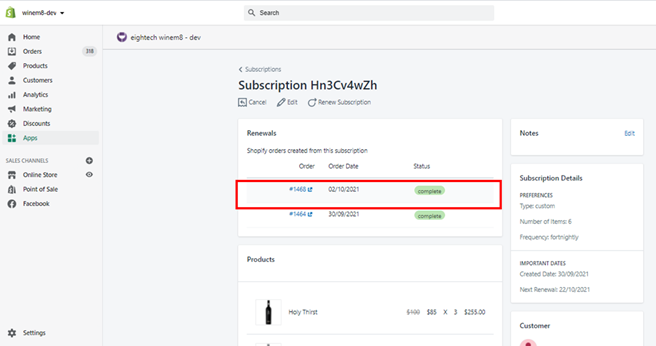
Navigate to the subscription via the Shopify Admin interface and open the renewal order by clicking on the order number.
-
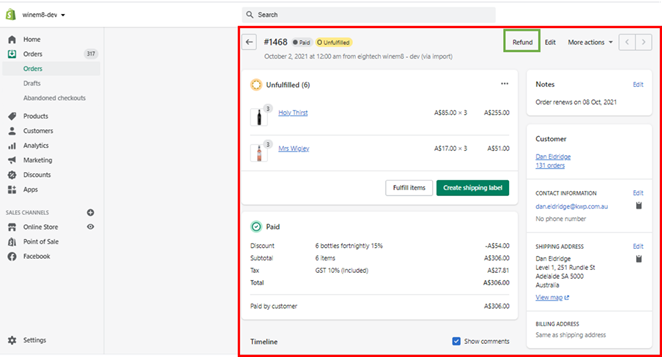
Select the Refund option from the top of the order page.
-
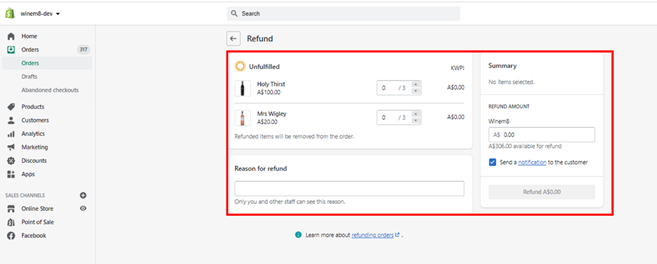
The Refund page will load with the product details.
-
Customise the refund — choose one of the two options below.
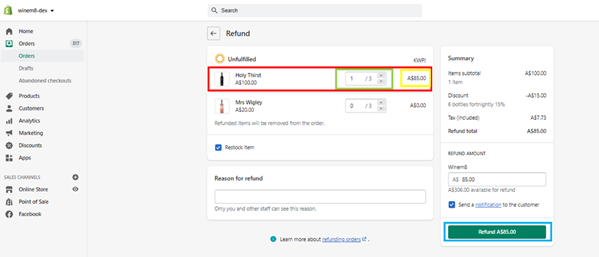
Option 1: Adjust the number of bottles for each product for which the refund needs to be made. This will automatically calculate the amount of refund — then click Refund A$xxx. You can select whether or not to notify the customer.
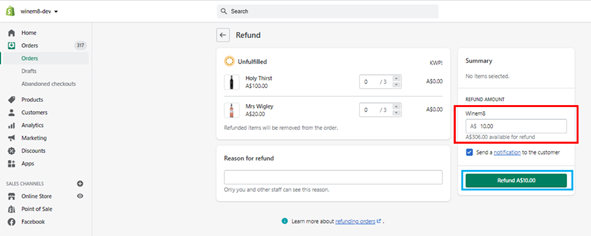
Option 2: Manually type the amount to be refunded — then click Refund A$xxx. You can select whether or not to notify the customer.
-
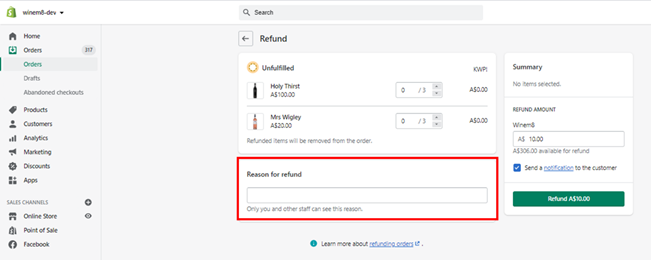
Mention the reason for the refund.
Where the refund appears
Section titled “Where the refund appears”The refund will be detailed at the bottom of the order details screen in Shopify. The refund is also shown:
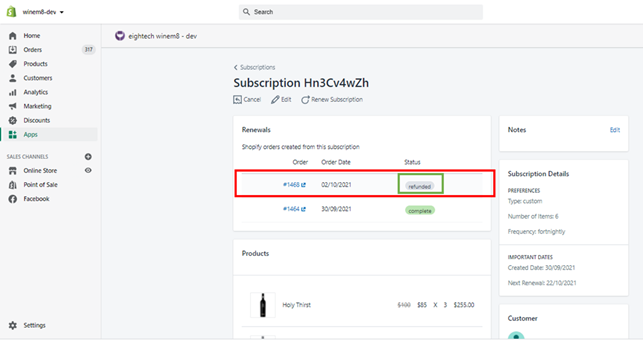
- On the subscription details table within Winem8 on the Subscription detail page.
- In the subscription history section at the bottom of the subscription.
- As a refund transaction within the connected Stripe account.