Cancelling subscriptions
Cancelling orders and subscriptions
Section titled “Cancelling orders and subscriptions”Use the guide below to decide whether you need to cancel a customer’s order, subscription, or both.
- If a customer wants to cancel their current renewal, only cancel their order.
- If a customer wants to cancel their order and their subscription, cancel their order and then their subscription.
- If a customer wants to cancel their subscription but keep their existing order, only cancel their subscription.
If there is a failed payment on a renewal and you are unable to get in touch with the customer, we recommend cancelling their current order and their whole subscription. However, if you believe they will want to continue being a member in the future, only cancel their existing order.
How to cancel an order
Section titled “How to cancel an order”If the customer no longer wants to continue with their current renewal, the pending order should be cancelled.
-
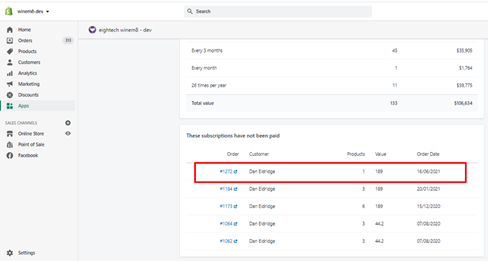
Click on the Order number link.
-
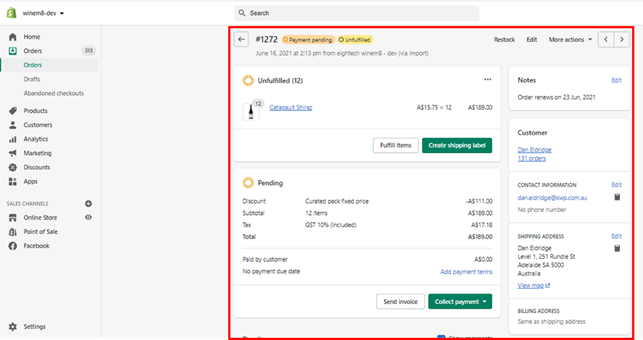
The order detail page in Shopify will open.
-
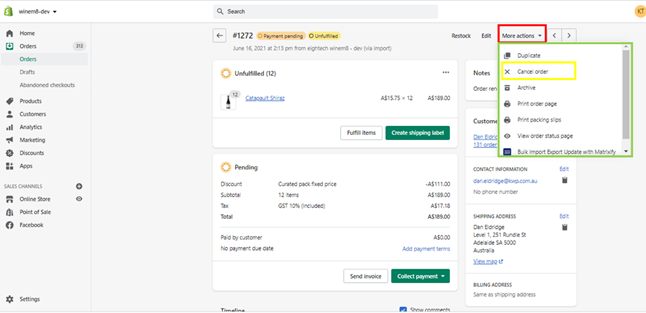
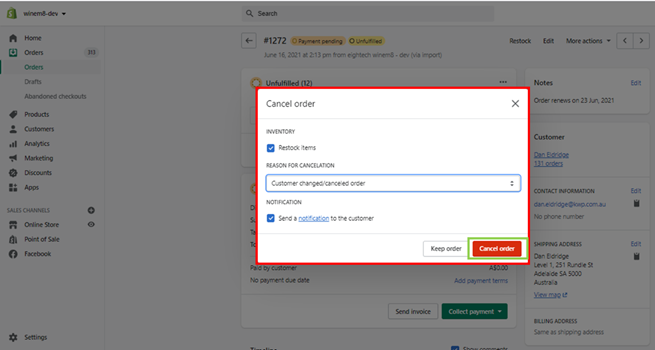
Click on the More actions dropdown on the top right of the page and click Cancel order.
-
A pop-up will appear. Select the required details — restock items, reason for cancellation, and notification — then click Cancel order to confirm.
How to cancel a subscription
Section titled “How to cancel a subscription”-
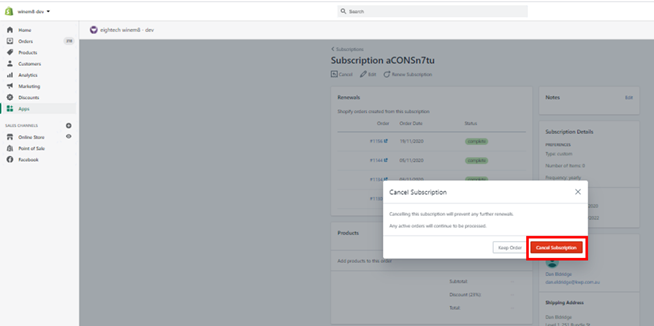
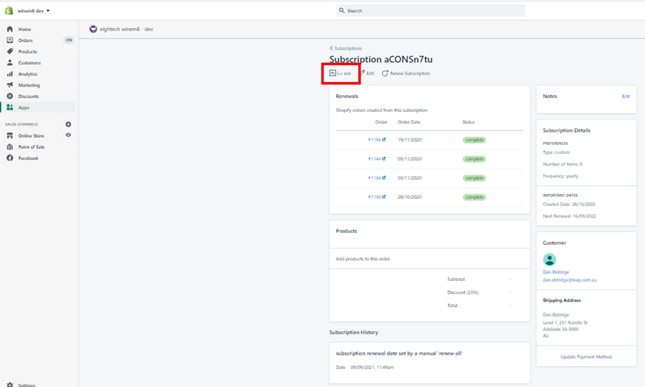
Navigate to the subscription details page within winem8. Click Cancel.
-
In the pop-up, click Cancel Subscription to confirm cancellation.