
Curated packs setup
What is a curated pack?
Section titled “What is a curated pack?”A curated pack is a box in which a brand sends their own selection of curated wines to the customer on a regular basis. In this box, the brand can send new releases and use it as an opportunity to teach customers about more and different wines.
Curated boxes also allow brands to manage their inventory better — they can easily forecast a little more consistently and use up the good but not-so-popular products without ending up with too much excess inventory.
This option is similar to the traditional wine club model, where you are creating orders in bulk at certain times throughout the year. Every member subscribed to each pack will get the same order at the same time.
How to set up a curated pack Initial Setup
Section titled “How to set up a curated pack ”-
Click on Settings.

-
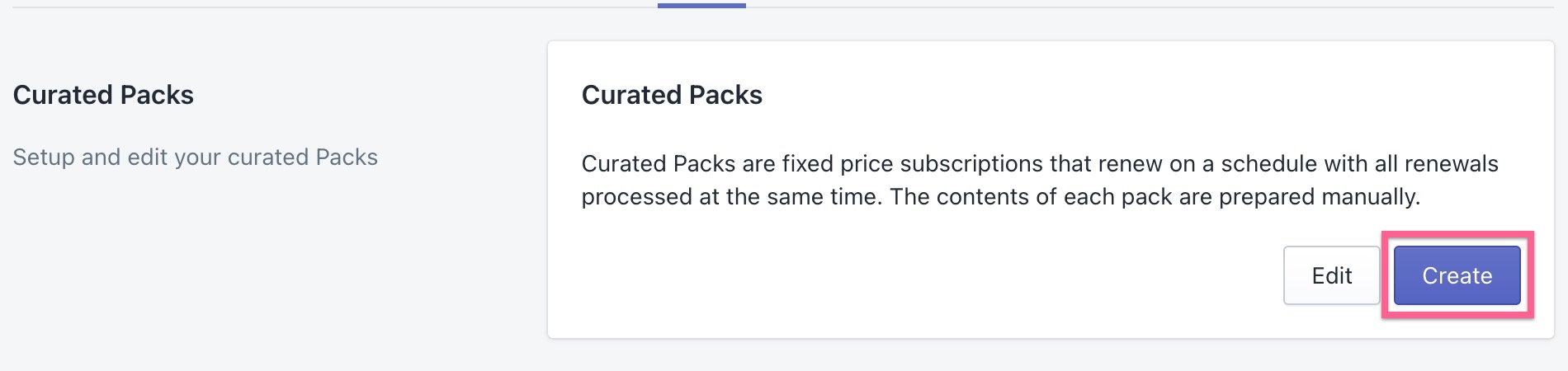
Scroll to the ‘Curated Packs’ section. Click the Create button.
-
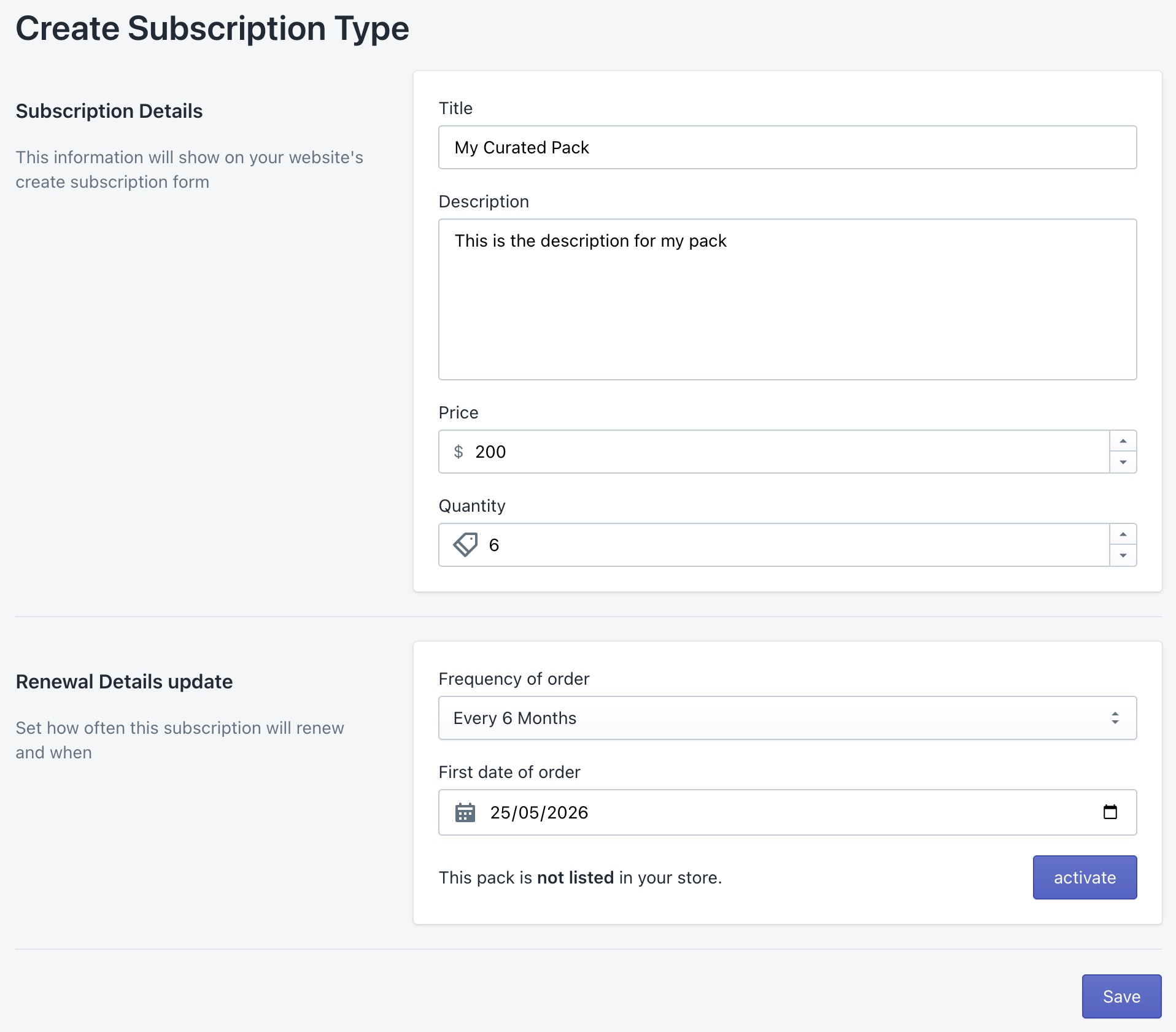
A page will pop up with the fields required to create a new curated pack. Fill in all the fields under Subscription details (Title, Description, Price, Quantity) and Renewal Details (Frequency of order and First date of order) with correct details for the new curated pack.
-
If you want this curated pack to become active immediately, click Activate and then Save. Otherwise, if you just want to save it as a draft, click Save.
-
Click Back and the new curated pack can be seen listed in the curated pack list.
Field reference
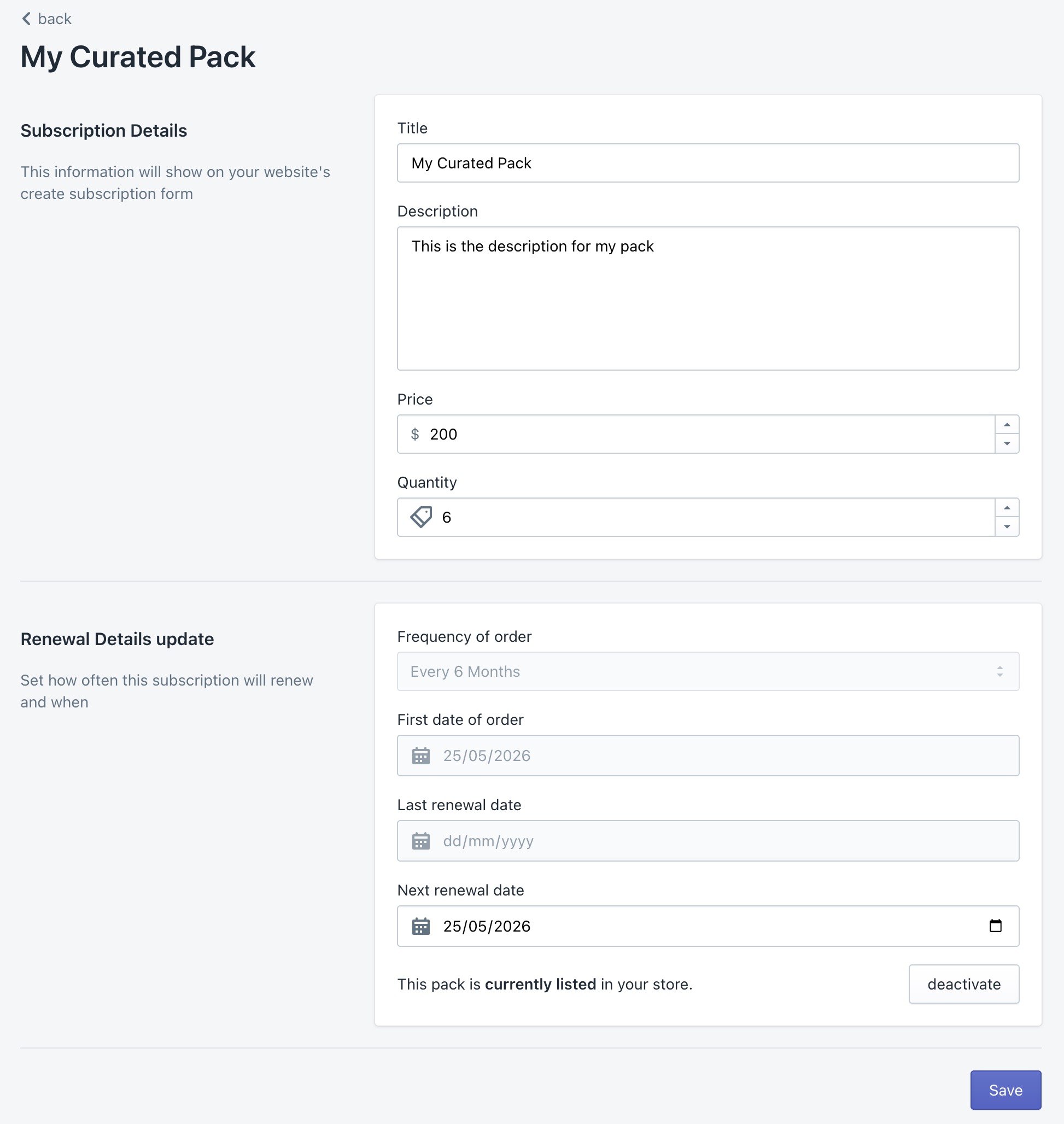
Section titled “Field reference”Title — The title is shown to customers on the sign-up form and on all management screens. This should be a unique name which clearly identifies the pack. We recommend adding details around how many bottles they will receive and how often, as this won’t appear automatically. Alternatively, you can add this in the description.
Description — The description is shown to customers when signing up. It should describe the number and type of products as well as the renewal frequency. We recommend adding details around the retail price of this box so the member can see the value they are receiving.
Price — The price of the pack. This is a fixed price which is charged to the customer on each renewal.
Quantity — The number of products included in each pack. This quantity is enforced when preparing the pack contents for each renewal.
Frequency of Order — The frequency of the pack renewals. This is used to set the default date of the next renewal.
First Date of Order — The date on which the pack will first renew. This value is used as the next renewal date from creation until the pack first renews.
Activate/Deactivate — Packs can be activated and deactivated to allow or prevent new subscriptions for the pack.
Next Renewal Date (edit only) — On existing packs, the next renewal date can be adjusted to a specific day, e.g. to avoid weekends. This value is used for display purposes on the front end to determine what month users can expect their shipment, and to determine when the reminder email is sent.
Updating your curated packs
Section titled “Updating your curated packs”-
Click on Settings.
-
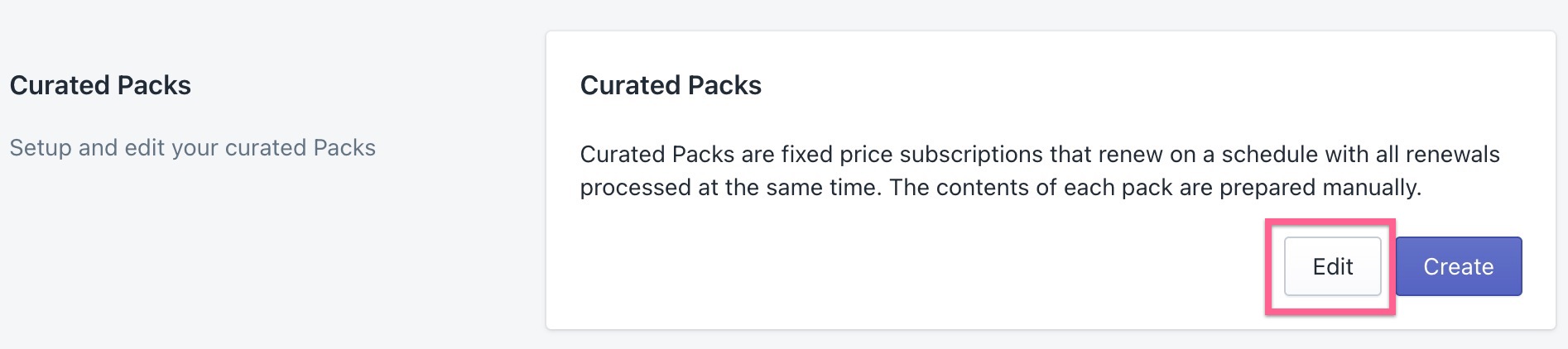
Click Edit.
-
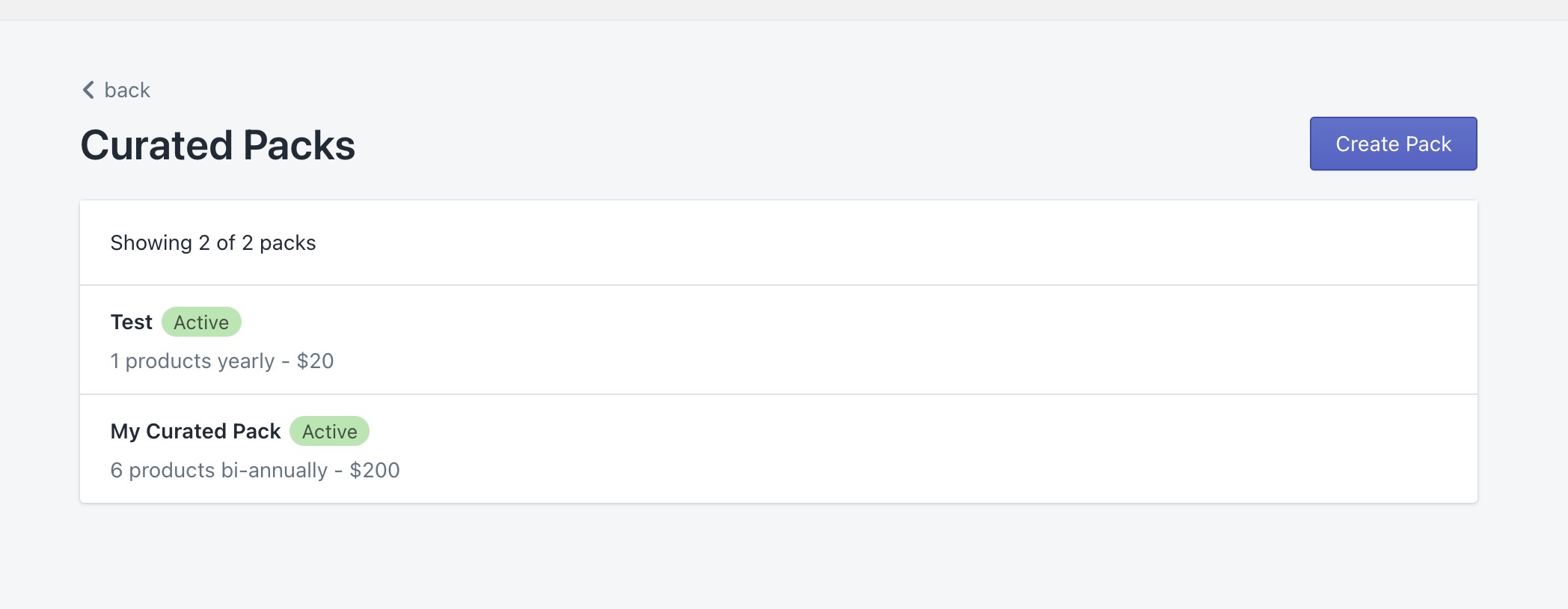
A list of current curated packs will appear. Click on the pack that needs to be edited or deactivated (e.g. My Curated Pack).
-
The curated pack page will open. The subscription details (Title, Description, Price, Quantity) and Renewal Details (Frequency of order, Next renewal date) can be edited here. Once done click the Save button.
-
To deactivate the pack, click the Deactivate button on this page and then click Save. The pack will then be unlisted from the store.

-
Alternatively if the pack is currently deactivated, click the Activate button and click Save. The pack will then be listed on the store.