
Managing custom subscriptions
About custom renewals
Section titled “About custom renewals”About the renewal process
Section titled “About the renewal process”Before an order is created, customers have the ability to edit their pack and details.
Once an order is created, the following options are available via the customer’s subscription management section on your store or via the app within Shopify:
- Update Addresses — Any updates to the customer’s default address in Shopify will update the shipping address of the pending renewal.
- Update Payment Method — Any updates to the customer’s payment method will apply when payment is taken for the pending renewals.
The renewal process for custom pack subscriptions
Section titled “The renewal process for custom pack subscriptions”Custom subscriptions are configured to allow the customer to have choice in their renewal frequency and, for that reason, are flexible with regards to when they renew.
First sign up
Section titled “First sign up”On initial creation of the subscription, the first renewal will be processed immediately. This results in an order being created and payment being processed. This is the case when someone signs up through the website.
If an admin signs up a member in the backend, they can set a subscription start date whenever they like.
Ongoing renewals
Section titled “Ongoing renewals”-
The next renewal is set to the current date plus the renewal frequency (e.g. 3 months from the initial purchase). This date is listed in the customer’s subscription.
-
Depending on the delay set under Order Fulfilment Lead Time, an order will be created a number of days before the next renewal date. It will sit in your orders waiting to be charged on the next renewal date.
-
On the renewal date, the order will charge.
-
If unsuccessful, a failed transaction will be recorded against the subscription as well as the Shopify Order, and a notification sent to your marketing automation platform. This notification can be used to trigger a notification to the customer or an internal email address to allow for manual follow-up. After 2 minutes, winem8 will automatically retry payment again in case there was a transient winem8/Stripe issue (this will not trigger the Klaviyo notification flow).
Failed payments
Section titled “Failed payments”If the payment still fails, winem8 automatically re-attempts this payment on days 1, 3 and 5 after the original payment failed. So if someone didn’t have enough funds in their account, it may be picked up on a re-attempt.
If you don’t get in touch with the member to get an updated payment method, cancel their order. We recommend setting up an automatic notification to the customer via Klaviyo.
Admin processes
Section titled “Admin processes”Renew custom subscriptions as a store admin
Section titled “Renew custom subscriptions as a store admin”The subscription page has multiple editing and management options. It will also list all the orders related to this subscription along with the products in this subscription/order.
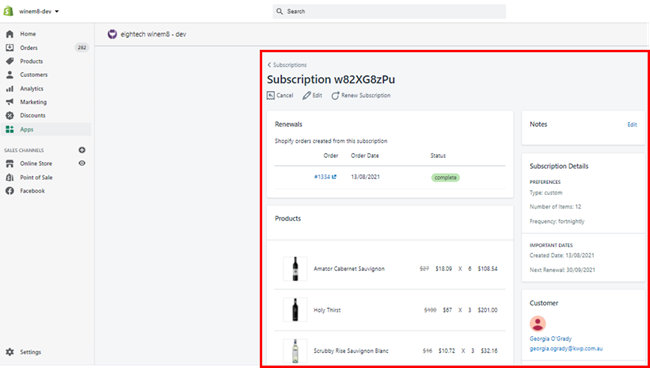
Click on Renew Subscription to renew.
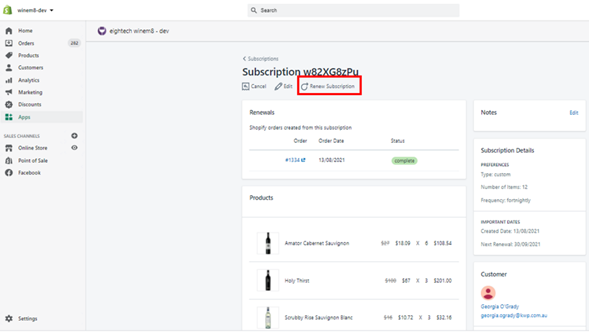
Edit custom pack subscription after renewal date as a store admin
Section titled “Edit custom pack subscription after renewal date as a store admin”Admin will need to find the subscription → Cancel the order → Edit the subscription → Renew Subscription.
-
Go to winem8.
-
Click on Subscriptions.
-
Click into the customer’s subscription that you would like to manage.
-
The subscription page will have multiple editing and management options. The page will also list all the orders related to this subscription along with the products in this subscription/order.
Cancel custom pack subscription
Section titled “Cancel custom pack subscription”-
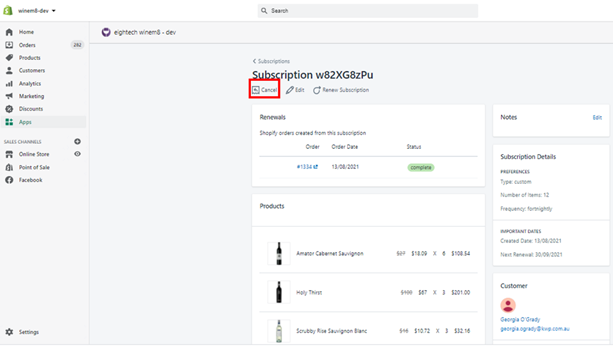
Click on Cancel to cancel the subscription.
-
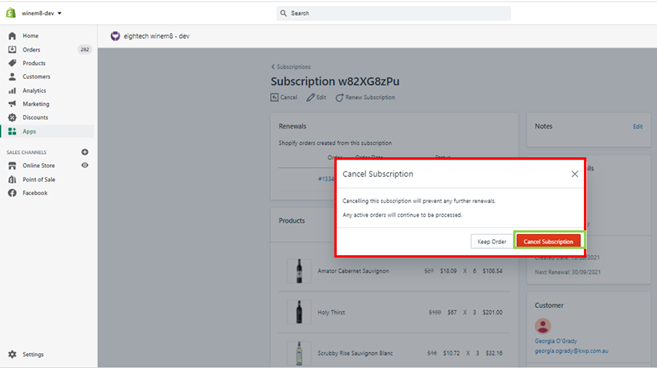
The confirmation pop-up will appear. Click Cancel Subscription to confirm cancellation, or Keep Order to keep the order.
Renew custom pack subscription
Section titled “Renew custom pack subscription”-
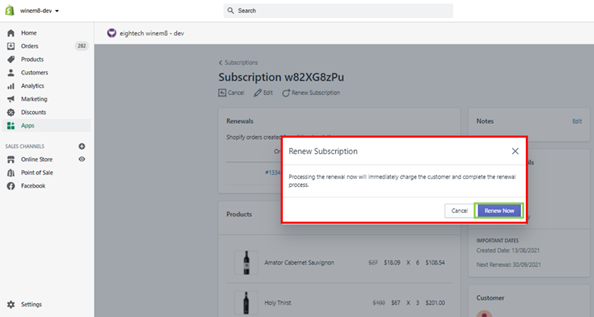
Click on Renew Subscription to renew.
-
The confirmation pop-up will appear. Click Renew Now to continue, or Cancel to discontinue.
Fulfil orders for custom pack subscriptions as a store admin
Section titled “Fulfil orders for custom pack subscriptions as a store admin”-
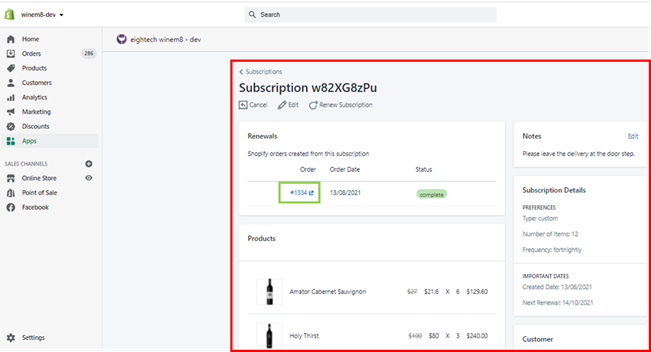
Find the subscription in the search result and click on the subscription ID to view the subscription page.
-
The page will load with the subscription details and the Order ID. Click on the Order ID.
-
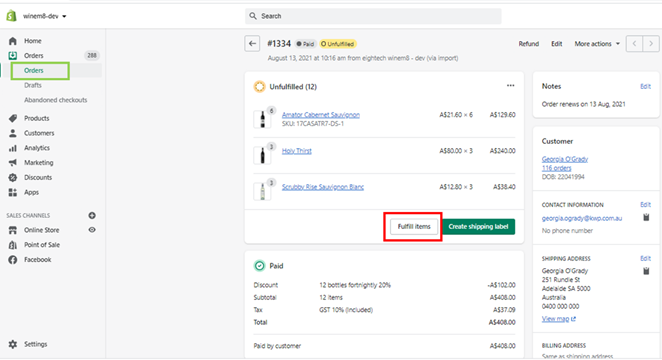
The Order page in the orders section under the Shopify store will load. Click on the Fulfill Items button.
-
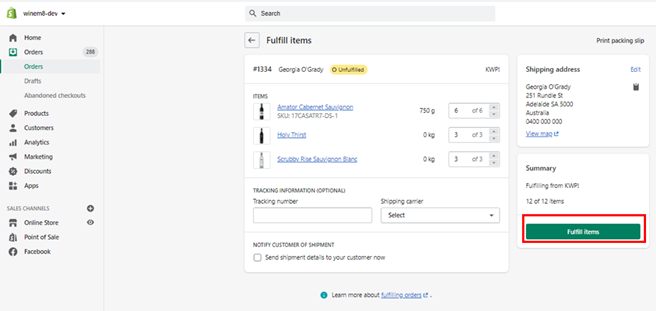
Enter the tracking number (if applicable), select the Shipping Carrier, and select the Notify customer option if required. Then click Fulfill Items.
Create a new custom pack subscription for a customer
Section titled “Create a new custom pack subscription for a customer”-
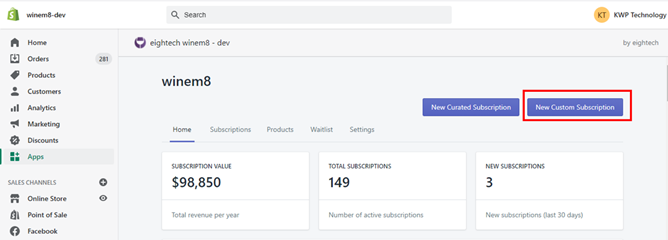
Within the winem8 dashboard, select New Custom Subscription.
-
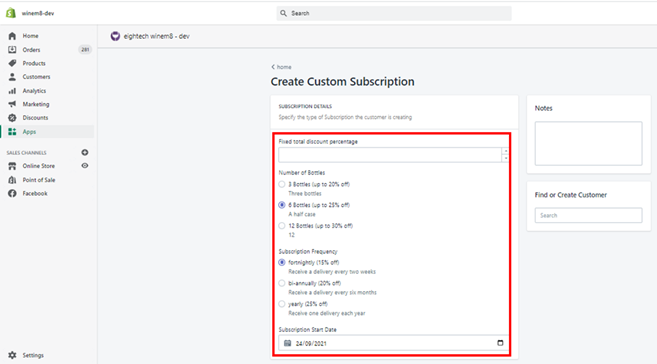
Under the Subscription Details section, either:
- If you would like to give a fixed discount to your customer (for example when the brand wants to create a subscription with more bottles and give a special total fixed discount), add the discount percentage under Fixed total discount percentage, then select the frequency your customer would like to subscribe to.
- Otherwise, select the number of bottles your customer would like to subscribe to, then select the frequency.
Then select the Subscription Start Date, for when the customer would like their subscription to commence.
-
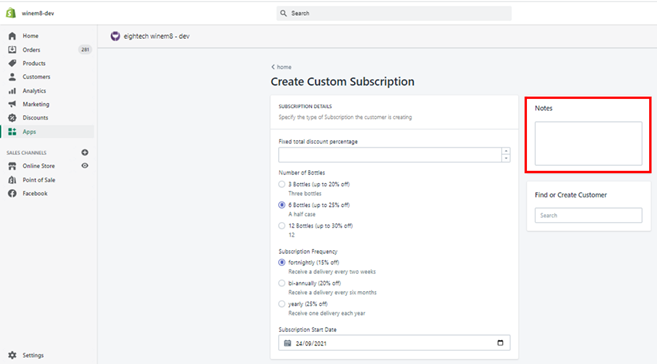
Add any notes that need to be included on the order — this can be shipping directions like “leave my order by the front door.”
-
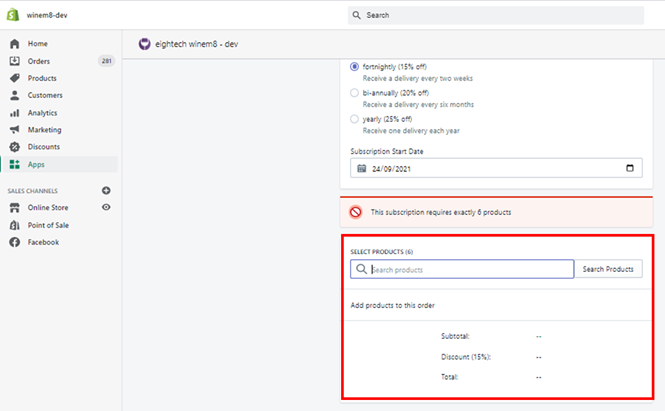
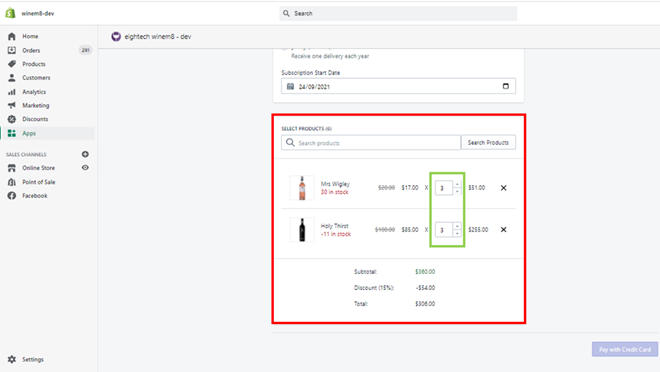
From the Search Products section, search for and select the products your customer wants to add to the subscription.
-
After selecting the products, arrange the number of each product to ensure the number of bottles is the same as selected earlier. You can also view the discount and total cost for this order.
-
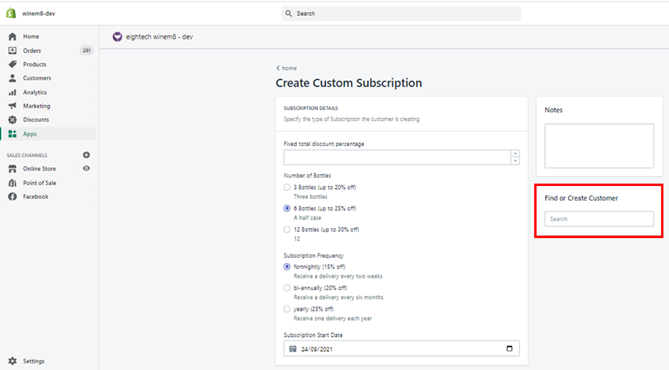
Find or create the customer profile.
-
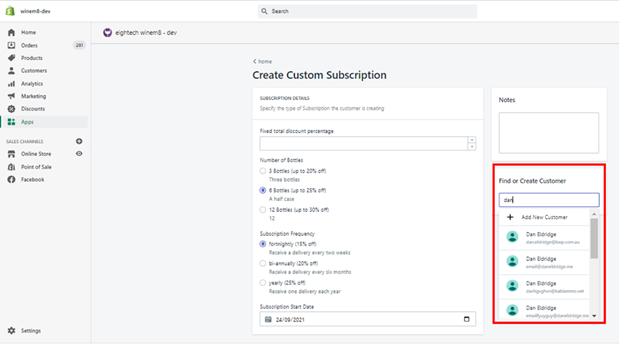
Existing customer: If the customer has purchased from you before, their account will appear in this list.
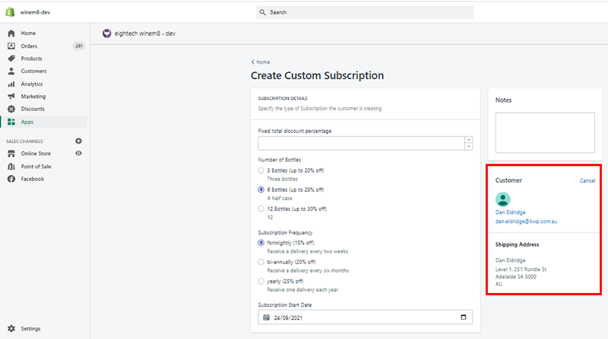
Select the customer and their details will appear.
-
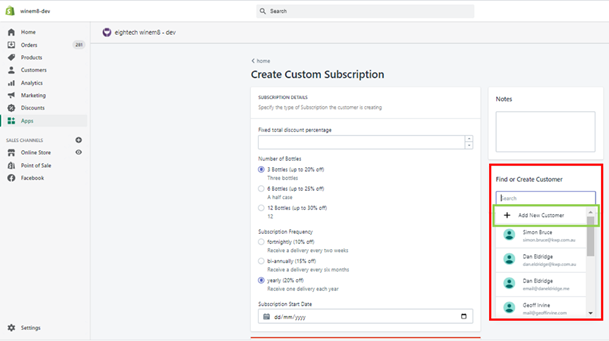
New customer: Click Add New Customer under Find or Create Customer.
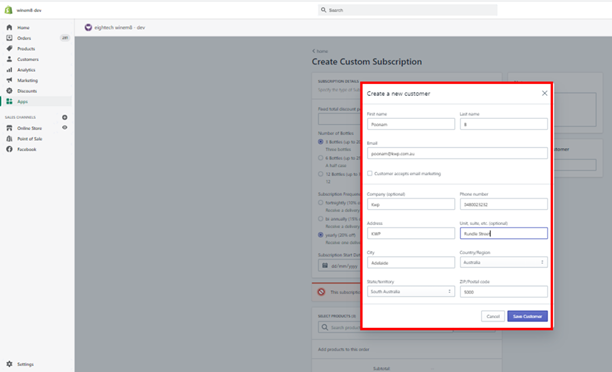
Add in the customer details in the pop-up window and click Save Customer.
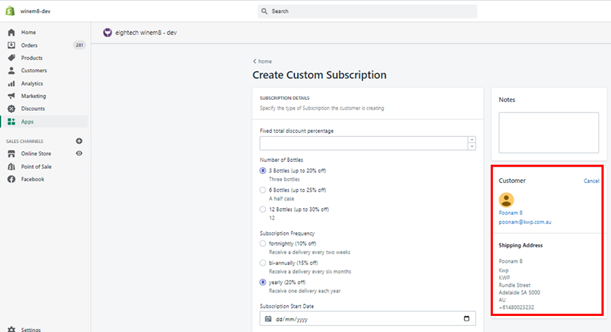
The customer will be selected.
-
-
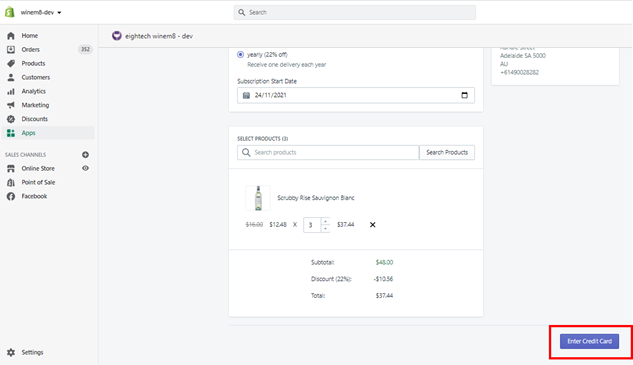
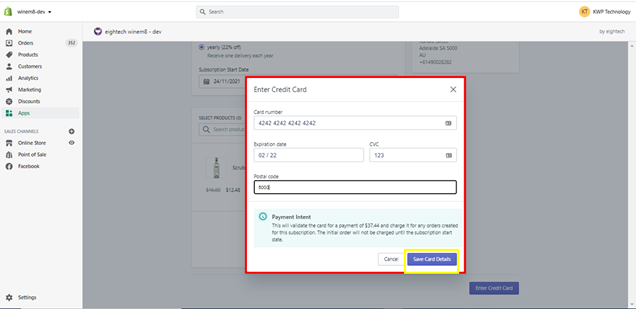
Select Enter Credit Card.
-
Add the credit card details and click Save Card Details.
-
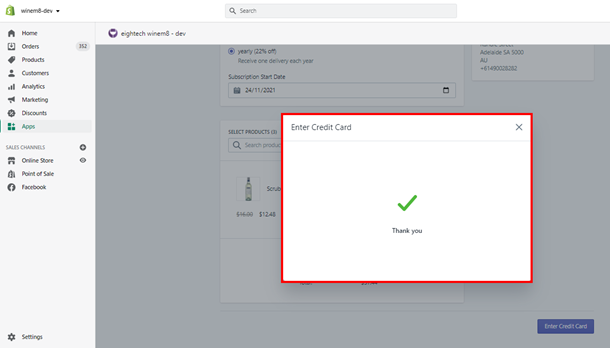
Wait until you get the Thank you for your payment message. Close the pop-up.
-
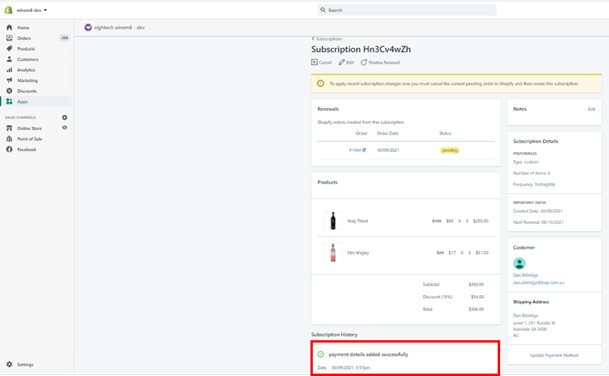
The Subscription History section will show the payment success or failure message.
Create a new custom pack subscription for a customer to start in the future
Section titled “Create a new custom pack subscription for a customer to start in the future”-
Within the winem8 dashboard, select New Custom Subscription.
-
Under the Subscription Details section, either:
- If you would like to give a fixed discount to your customer (for example when the brand wants to create a subscription with more bottles and give a special total fixed discount), add the discount percentage under Fixed total discount percentage, then select the frequency your customer would like to subscribe to.
- Otherwise, select the number of bottles your customer would like to subscribe to, then select the frequency.
-
Select the Subscription Start Date as a date in the future, for when the customer would like their subscription to commence.
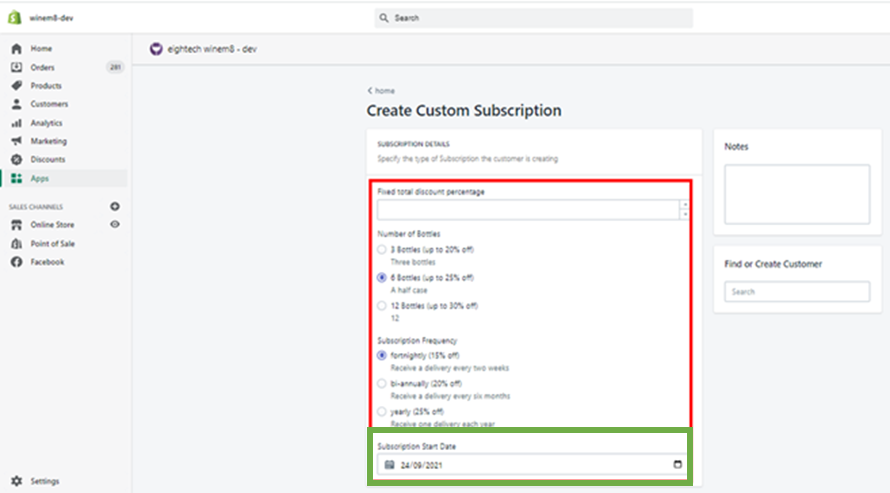

This will ensure that the order for the subscription is only created around the time of renewal, and an order won’t be sitting there pending for a long period of time. This also ensures the customer receives all notifications.
-
Add any notes that need to be included on the order — this can be shipping directions like “leave my order by the front door.”
-
From the Search Products section, search for and select the products your customer wants to add to the subscription.
-
After selecting the products, arrange the number of each product to ensure the number of bottles is the same as selected earlier. You can also view the discount and total cost for this order.
-
Find or create the customer profile.
-
Existing customer: Their account will appear in this list.
Select the customer and their details will appear.
-
New customer: Click Add New Customer under Find or Create Customer.
Add in the customer details in the pop-up window and click Save Customer.
The customer will be selected.
-
-
Select Enter Credit Card.
-
Add the credit card details and click Save Card Details.
-
Wait until you get the Thank you for your payment message. Close the pop-up.
-
The Subscription History section will show the payment success or failure message.
Creating custom packs with over 12 bottles
Section titled “Creating custom packs with over 12 bottles”-
Within the winem8 dashboard, select New Custom Subscription.
-
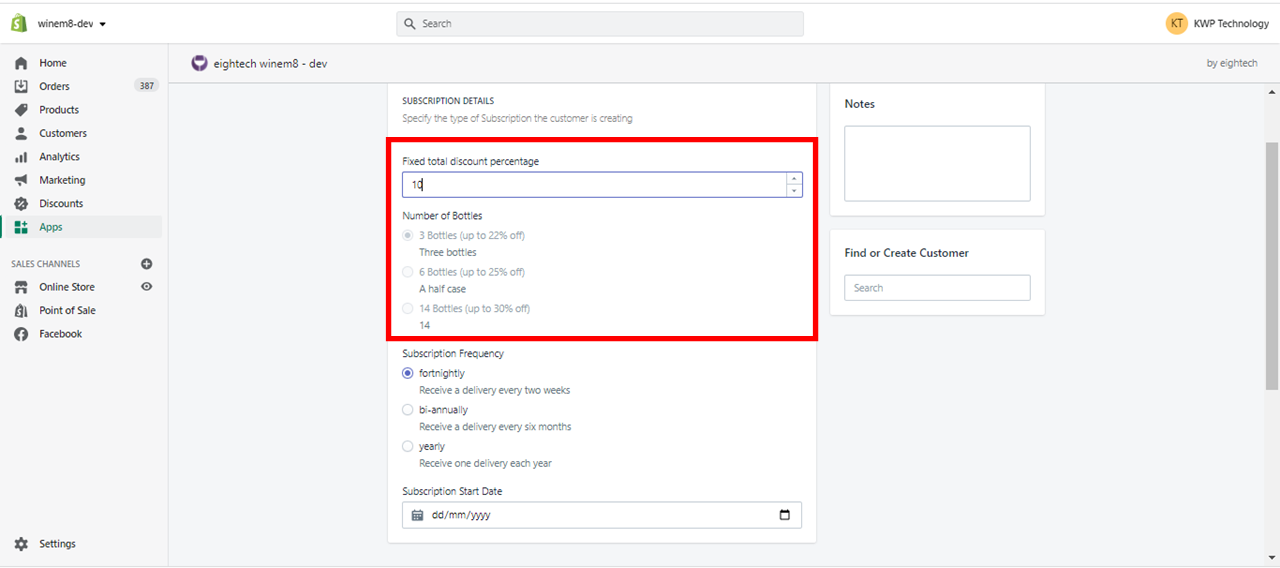
Under the Subscription Details section, to add more than 12 bottles to the pack, choose to give a fixed discount to your customer and add the discount percentage under Fixed total discount percentage.
This will disable the Number of bottles section.
-
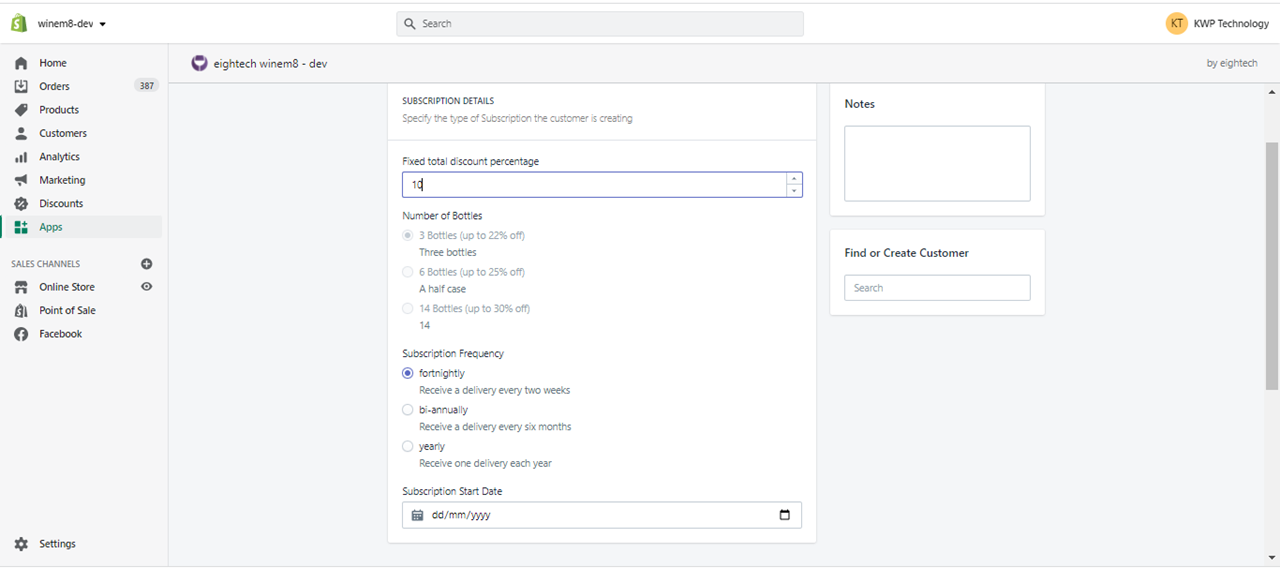
Select the frequency your customer would like to subscribe to, and the Subscription Start Date for when the customer would like their subscription to commence.
-
Add any notes that need to be included on the order.
-
From the Search Products section, search for and select the products your customer wants to add to the subscription.
-
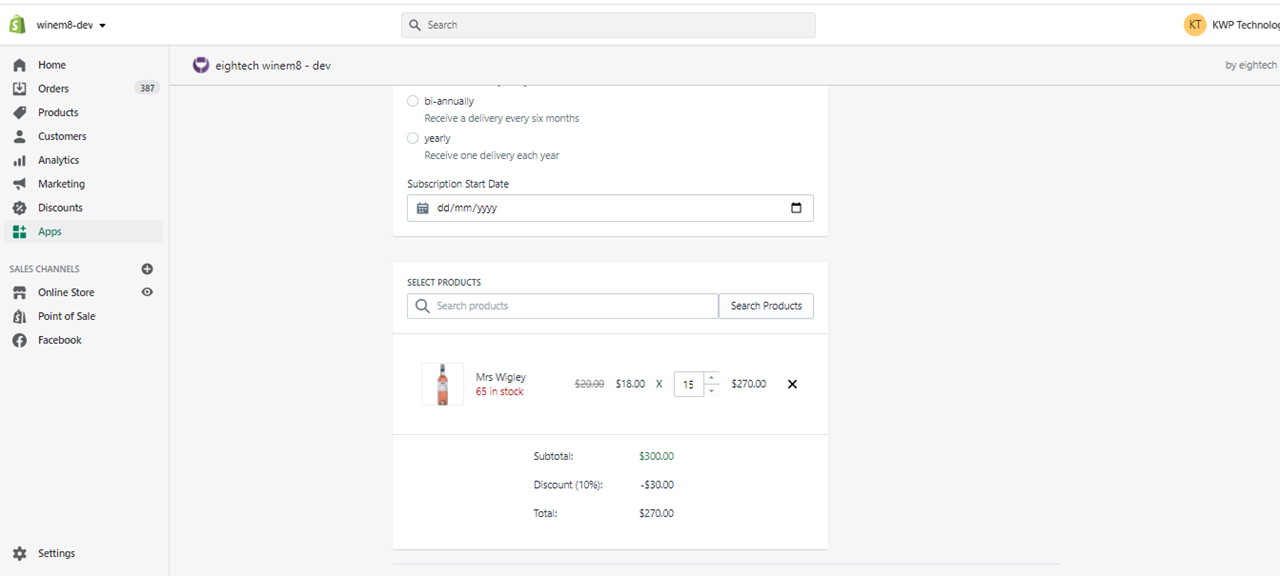
After selecting the products, you can manage the number of bottles to be 12 or more products. You can also view the discount and total cost for this order.
-
Find or create the customer profile.
-
Existing customer: Their account will appear in this list.
Select the customer and their details will appear.
-
New customer: Click Add New Customer under Find or Create Customer.
Add in the customer details in the pop-up window and click Save Customer.
The customer will be selected.
-
-
Select Enter Credit Card.
-
Add the credit card details and click Save Card Details.
-
Wait until you get the Thank you for your payment message. Close the pop-up.
-
The Subscription History section will show the payment success or failure message.