Shopify and WineM8
Set up a Shopify Smart Collection for WineM8 Initial Setup
Section titled “Set up a Shopify Smart Collection for WineM8 ”Custom subscriptions can only include products from a Shopify collection you choose. This allows you to exclude some products from subscriptions, and to create products that are available on subscription but not for one-off purchase.
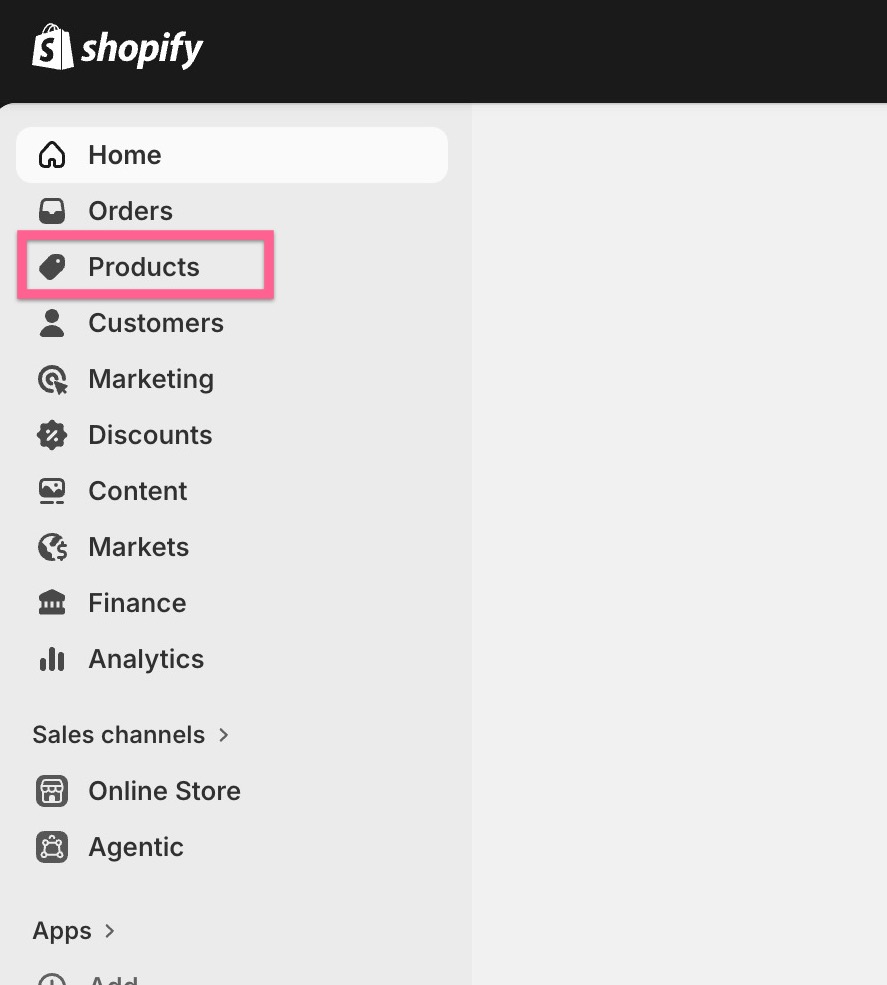
- Go to Products > Collections
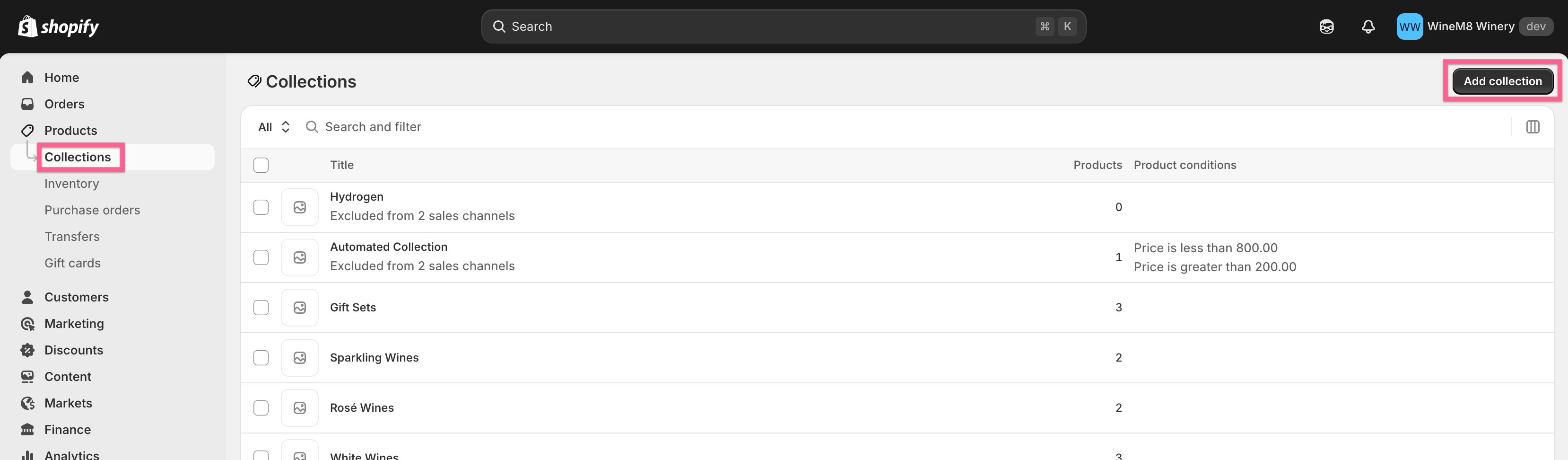
- Select ‘Add Collection’
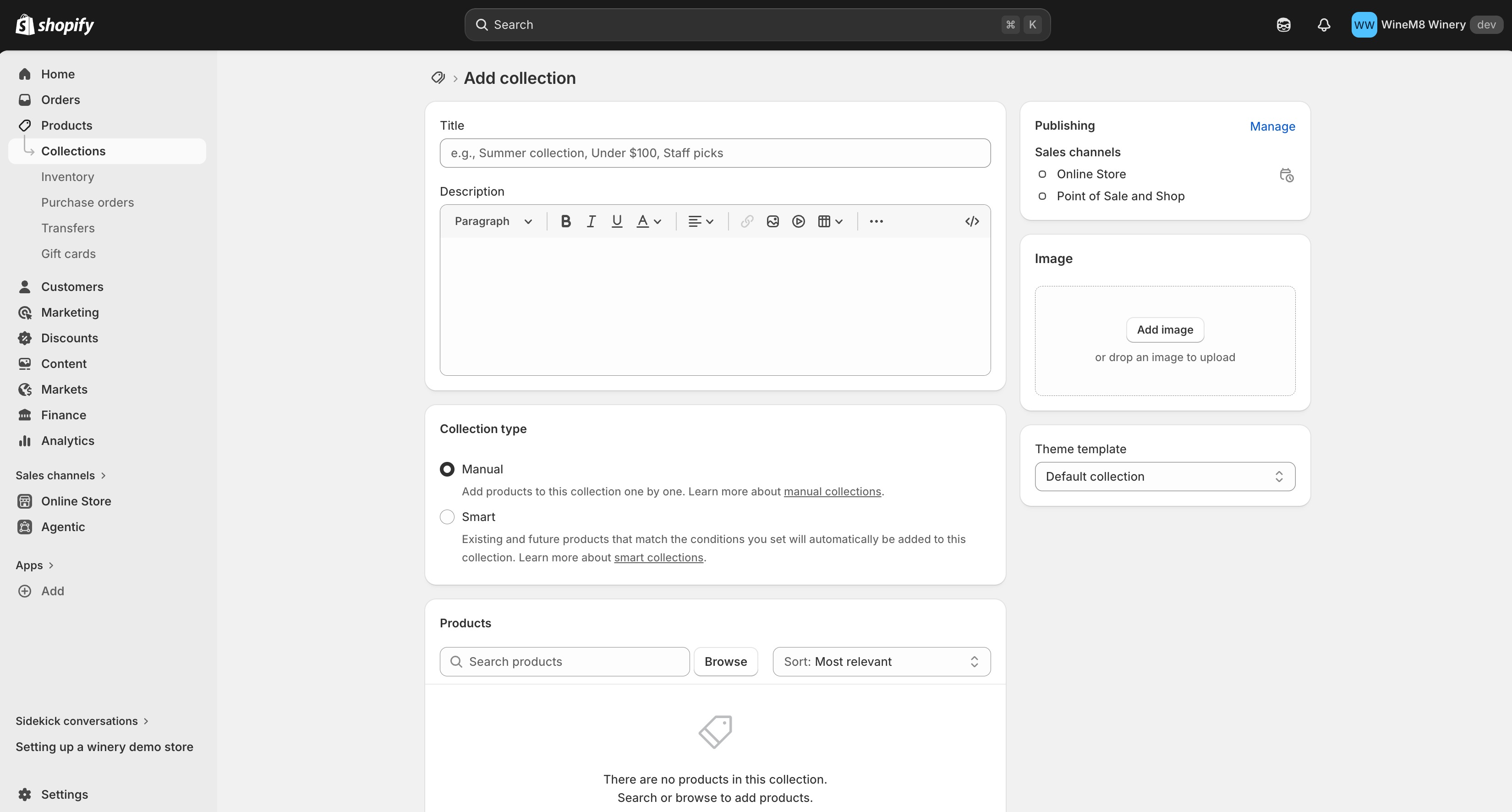
- Configure your collection
Configuration recommendations
Section titled “Configuration recommendations”Title: Make it obvious that this collection is for WineM8. For example: ‘Wine Club Wines’, ‘WineM8 Products’ or ‘Wines for Custom Subscribers’.
Description: Not required
Collection Type: Smart Collection
Why is this type of collection smart? Because you can add a condition to it so that products that meet your set condition are automatically added to the collection.
An Example:
The following configuration will match every product provided with a ‘WineM8’ tag in Shopify, automatically placing them in this collection.
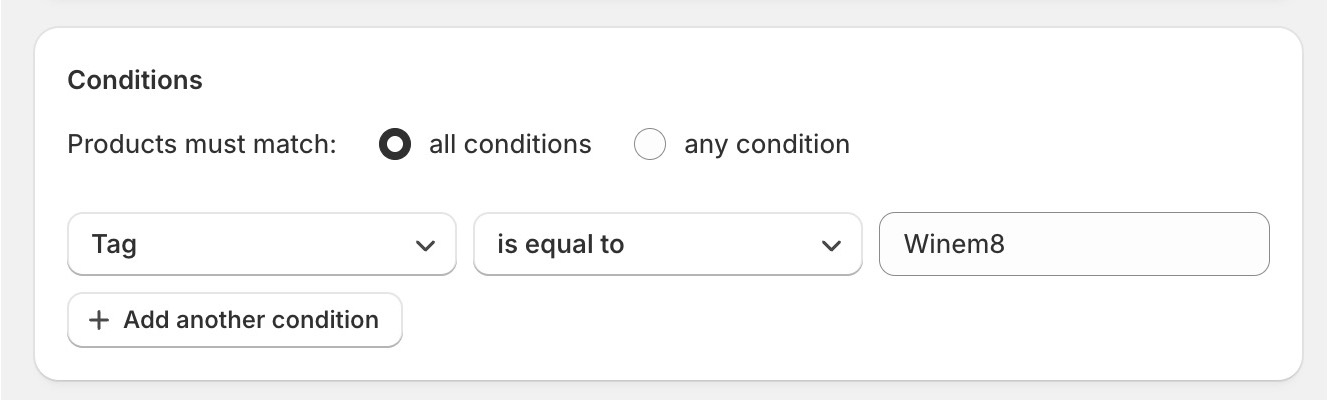
Creating WineM8 products for custom subscriptions Initial Setup
Section titled “Creating WineM8 products for custom subscriptions ”The products you make available to subscribers may be different to the products you sell directly on your store for various reasons.
Display Products
Section titled “Display Products”The recommended approach to setting up products that your subscribers can subscribe to is by using ‘Display products’.
Display products are purely for show. They do not have any stock associated with them and exist solely as a representation of your product line. They are set up to convey the price and image of a product line.
When a user subscribes to a product they interact with the display product. Behind the scenes this display product is then mapped to an actual product that will be provided to them when their subscription is renewed.
For Example
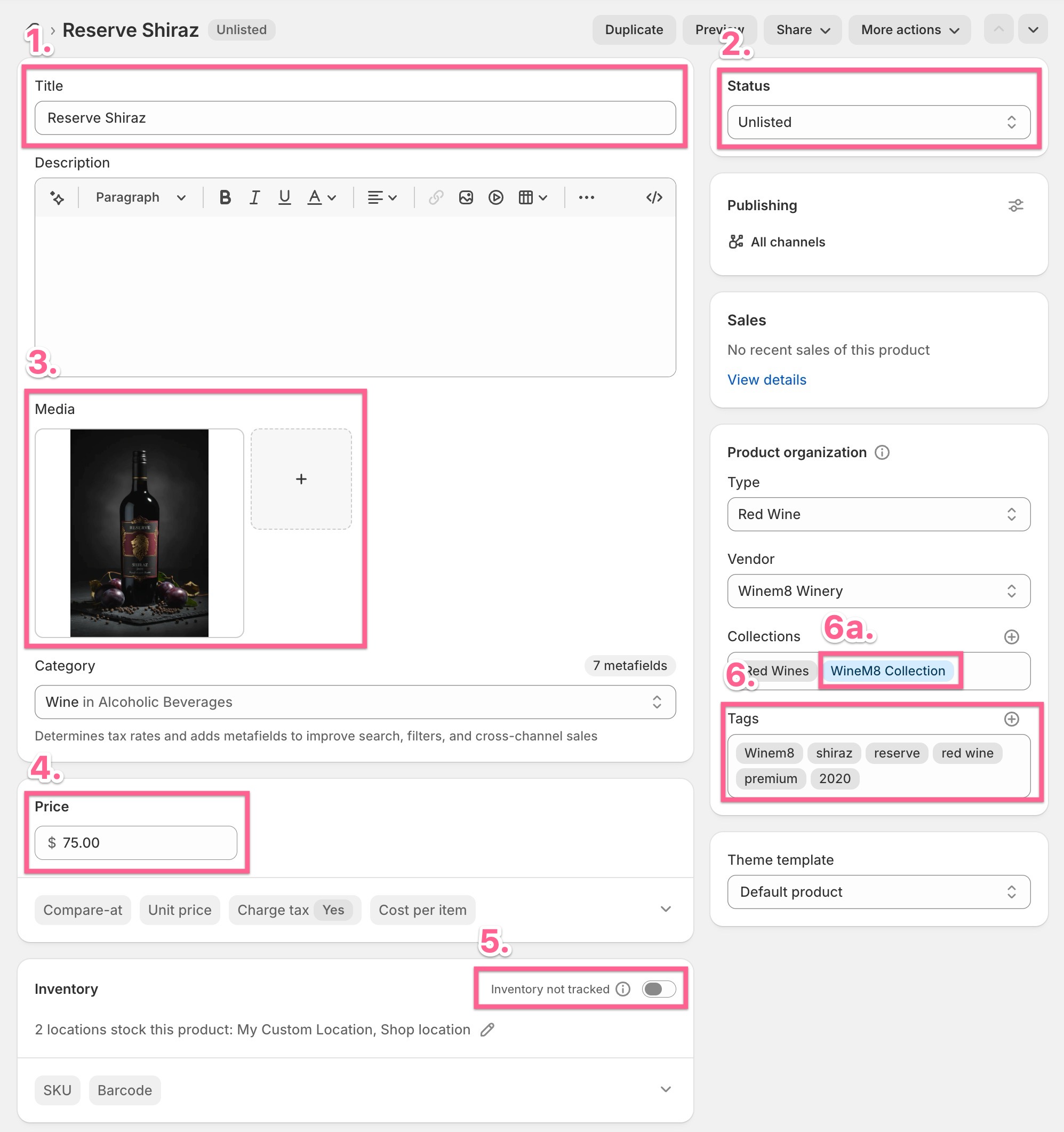
Section titled “For Example”Here is an example Display product for our ‘Reserve Shiraz’:
1. Title
Section titled “1. Title”The title of the product only uses the wine’s label and omits the use of the vintage to remain non-specific.
2. Status
Section titled “2. Status”We recommend setting the status of this product to unlisted so that the product cannot be discovered publicly by users. Unlisted products can be purchased via a direct link which WineM8 utilises to create orders with the product if it has not been mapped.
Unlisted products are a new concept introduced by Shopify in 2025. Brands who have set up their display products prior to this may be more familiar with having their products set to ‘Active’. This will continue to work without any issues — unlisted products just provide a supported way to remove a product from being publicly discoverable.
3. Media
Section titled “3. Media”Only one image is required which will be displayed to the user on the sign-up page.
4. Price
Section titled “4. Price”This price will also be displayed to the user on the storefront when signing up and used to calculate the cost of their subscription.
5. Inventory
Section titled “5. Inventory”We recommend not tracking the inventory on this product, this essentially sets the product to having unlimited inventory. If you do set a display product up to use inventory, once the inventory is gone the product will no longer appear.
When we go to set up our WineM8 custom packs, we will use products with inventory tracking tied to this display product to help track our inventory. This unlimited value allows for a fallback product so the order does not fail if stock runs out.
6. Tags
Section titled “6. Tags”If you followed the steps to create a smart collection and included a condition based on tags, adding a tag here to meet the collection’s condition will cause the product to automatically be placed in the correct collection, as you can see in 6a. where the ‘WineM8Collection’ is outlined in blue.
In this case we’ve added the ‘WineM8’ tag to the product and will do the same for every product we want to exist in our WineM8 collection.
Polishing your Shopify theme
Section titled “Polishing your Shopify theme”Before going live with Winem8 it is important to make sure the new cart page is up to date with the rest of your store. When installing Winem8 on your store we drop in some new templates and update existing templates to make sure the cart page and subscriptions management page can be accessed.
Your cart page
Section titled “Your cart page”Your cart page can be found at your Shopify url + ‘/apps/subscriptions/cart’. This is where users will land to first sign up to the Wine Club so it is important that we explain this clearly at the top of the page.
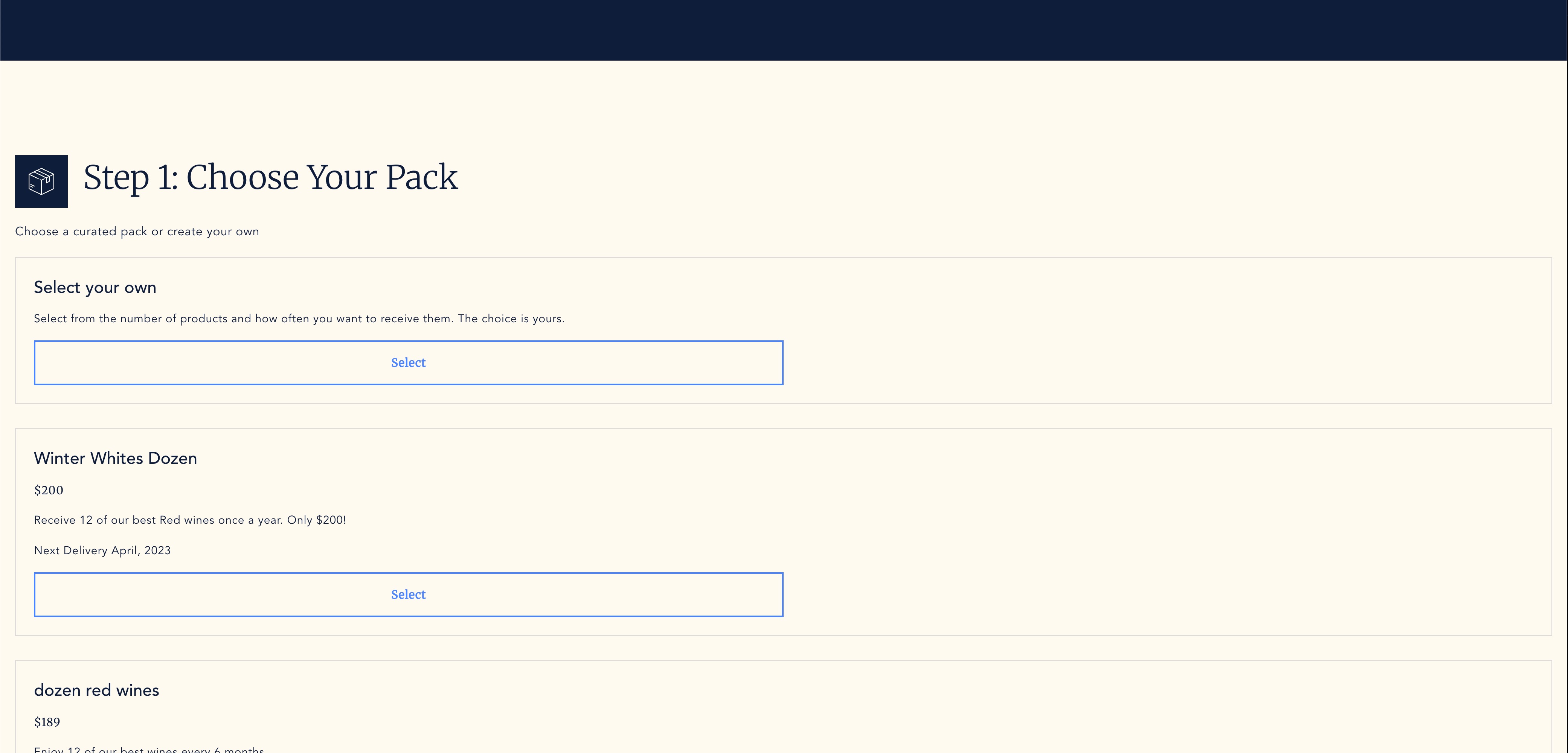
If your store has not received any styling already you may see the bare bones implementation of the cart. It is recommended to discuss with the development team how you would like to style this page.
The development team has the capacity to use existing modules above the cart to match your site or provide some text area where you can introduce the subscription service.
The selection interface can also be styled to match your store, if you have any specifics you would like please reach out and let us know!
Manage your subscriptions page
Section titled “Manage your subscriptions page”Our developers will also add a link to your Shopify accounts page that will direct users to ‘/apps/subscriptions/manage’.
It is also possible to style this page to match your store’s theme in discussion with the developers.